IPTV Black Screen but Audio Works? 10 Step-by-Step Fixes for Sound With No Picture
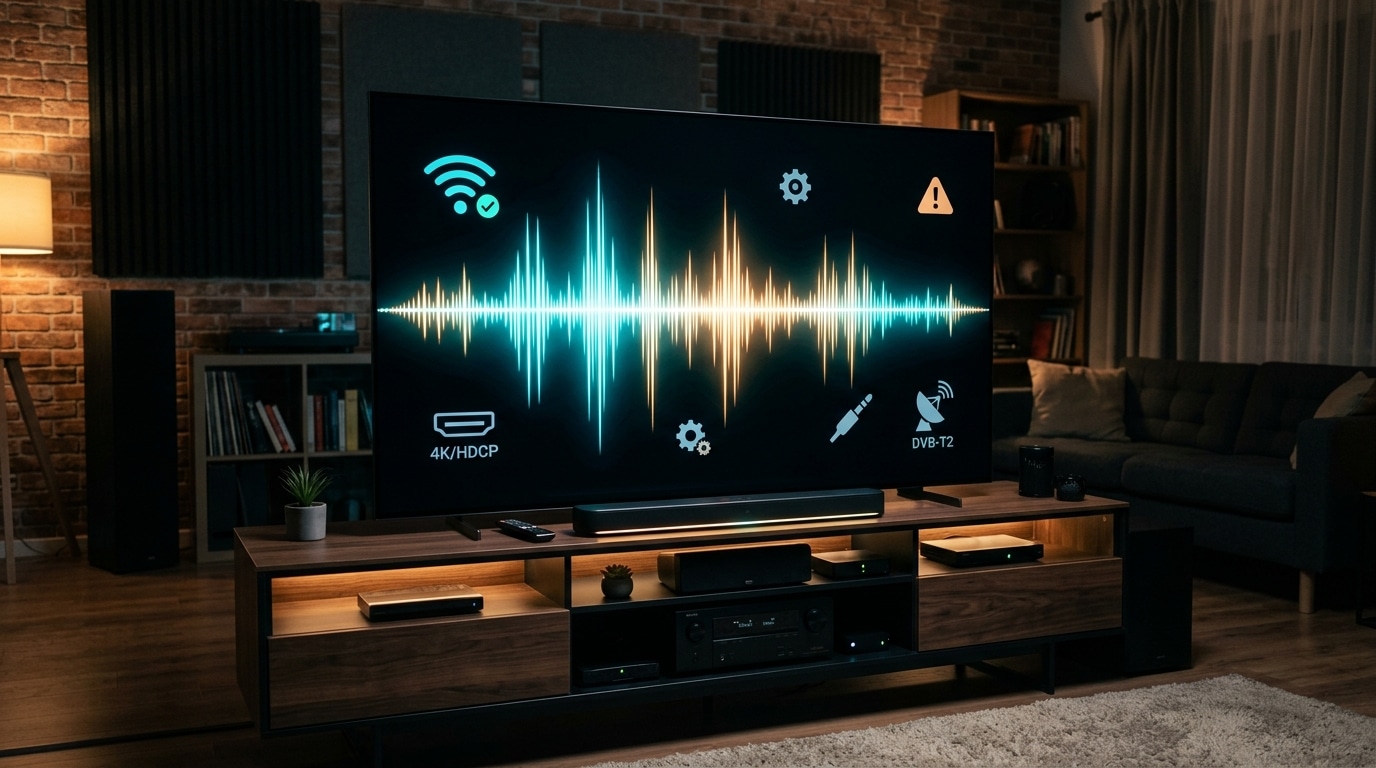
Few technical glitches in digital entertainment are more perplexing or frustrating than clicking on a live television channel or on-demand movie, hearing stadium crowd noise, commentary, or dialogue play through your speakers with absolute crystal clarity, while staring helplessly at a completely dark, pitch-black television screen.
The natural assumption for most viewers is that their internet connection has failed or that the streaming provider's service is down.
Yet, the fact that you can hear uninterrupted sound proves that your internet connection is active, your subscription credentials are authenticated, and data packets are flowing into your streaming hardware in real time.
So why is your television screen refusing to display the picture?
The answer lies in the fundamental architecture of digital video broadcasting. Inside every television stream, audio data and video data travel as two separate, independent digital streams multiplexed within a transport container.
Audio decompression is computationally lightweight—even an inexpensive, decade-old processor can decode an AAC or MP3 audio stream using basic software instructions.
High-definition and 4K video decompression, however, is immensely complex. It requires dedicated hardware silicon decoders (such as Android’s MediaCodec or Apple’s AVFoundation), synchronized HDMI clock handshakes, and strict display encryption protocols.
If your streaming device’s video decoder fails to initialize, encounters an unsupported video compression profile (such as 10-bit HEVC on an 8-bit chip), or hangs during an HDMI refresh rate handshake, the video pipeline crashes while the audio pipeline continues rendering happily.
The good news is that this glitch is almost always a client-side configuration conflict that you can diagnose and permanently resolve in under five minutes.
This comprehensive technical troubleshooting guide explains the precise mechanics behind the "sound without picture" error, presents a systematic 10-step diagnostic protocol, and delivers device-specific walkthroughs for Amazon Firesticks, Apple TV 4K, Smart TVs, and Android TV boxes.
Experience Reflexsat IPTV
Upgrade your streaming with satellite-grade, anti-freeze 10.0 infrastructure. Over 50,000 live channels, 4K 60FPS sports, and 200,000+ VODs.
Quick Summary: The Emergency Black Screen Fix Checklist
If you are trying to restore picture before a live match begins, try these three high-probability fixes immediately:
- Toggle Video Decoder to "Software" or "VLC Engine": In your IPTV player settings (such as TiviMate or IPTV Smarters), switch the video decoder from Hardware to Software. Software decoding forces your device's CPU to render the image mathematically, bypassing a frozen hardware chip.
- Turn Off Auto Frame Rate (AFR) Matching: If your TV screen went black right after clicking a channel, your television panel may be stuck in an HDMI refresh rate handshake loop. Disable AFR in your player playback settings.
- Switch Stream Format to MPEG-TS (.ts): In your Xtream Codes playlist parameters, change stream output from HLS (.m3u8) to MPEG-TS (.ts).
- Execute a Full Hardware Power Drain: Unplug both your streaming box and your television set from the electrical wall outlet for 60 seconds to discharge residual capacitor voltage and reset the HDMI HDCP handshake.
The Technical Pathology: Why Does Audio Play When Video Fails?
To understand how to fix the problem permanently, it helps to understand how media players process broadcast data packets.
+-----------------------------------------------------------------------------------+
|                        MPEG-TS DEMUXING & DECODING PIPELINE                       |
+-----------------------------------------------------------------------------------+
|  [ Incoming IPTV Transport Stream (.ts) ]                                         |
|                           |                                                       |
|                  [ Container Demuxer ]                                            |
|                  /                                                               |
|         [ Audio Stream ]       [ Video Stream (H.264 / H.265) ]                   |
|                 |                             |                                   |
|      (Lightweight CPU Task)         (Complex GPU Hardware Task)                   |
|                 |                             |                                   |
|       [ Audio Decoder ]             [ Hardware Video Decoder ]                    |
|                 |                             |                                   |
|                 v                             v                                   |
|      [ Plays Through Speakers ]    [ Video Decoder Crashes / Hangs ]              |
|             (SUCCESS)                         |                                   |
|                                               v                                   |
|                                     [ Pitch Black Screen ]                        |
+-----------------------------------------------------------------------------------+
1. The Container Demuxer
Television streams arrive at your streaming device inside digital transport containers—typically an MPEG Transport Stream (.ts) or HLS Segment (.m3u8).
The player software contains an internal engine called a demuxer (demultiplexer). The demuxer’s job is to open the container envelope and split the data into its two primary components:
- The compressed audio track (e.g., AAC, MP3, AC3 Dolby Digital).
- The compressed video track (e.g., H.264/AVC, H.265/HEVC, AV1).
2. The Audio Pipeline (Why Sound Continues)
Audio data is tiny compared to video data. A stereo audio track consumes only 128 to 192 kilobits per second.
Because audio decompression requires almost zero processing power, modern players decode audio through generic software libraries without relying heavily on specialized hardware.
Even if the device's graphics processing unit (GPU) is completely locked up, the audio pipeline will continue running smoothly, sending dialogue and crowd noise to your television speakers.
3. The Video Pipeline (Why the Screen Goes Black)
Video data, by contrast, is immense. A 1080p 60 FPS or 4K sports broadcast transmits millions of pixels every second, requiring 10 to 30 Megabits of data per second.
To process this volume of data without overheating, the streaming stick routes video packets into a dedicated silicon chip called a Hardware Video Decoder (such as Android’s MediaCodec or Apple’s AVFoundation).
A black screen with functioning audio occurs when:
- The hardware video decoder fails to recognize the specific compression profile of the incoming video stream (e.g., attempting to play a 10-bit color HEVC broadcast on an older 8-bit chipset).
- The player app’s surface view crashes or fails to attach to the operating system's window compositor.
- The HDMI High-bandwidth Digital Content Protection (HDCP) handshake between your streaming box and your TV fails, causing the TV panel to blank the screen for copyright protection.
- The player’s Auto Frame Rate switching routine triggers an HDMI clock mismatch, leaving the display panel locked in a black state.
10 Step-by-Step Fixes to Restore Video Playback
Follow this systematic troubleshooting hierarchy to identify your exact bottleneck and restore crisp video playback:
+-----------------------------------------------------------------------------------+
|                     10 STEP-BY-STEP FIXES FOR SOUND WITH NO PICTURE               |
+-----------------------------------------------------------------------------------+
| 1. Decoder Toggle          | Switch Hardware to Software (ExoPlayer to VLC Core)  |
| 2. Alternative Player Core | Test VLC Engine / MX Player integration              |
| 3. Refresh Rate Lock       | Disable Auto Frame Rate (AFR) matching in player     |
| 4. Protocol Output Shift   | Switch stream format from HLS (.m3u8) to MPEG-TS (.ts)|
| 5. Memory & Cache Flush    | Clear player application cache in device settings    |
| 6. HDMI Handshake Reset    | Perform complete 60-second electrical power drain    |
| 7. Display Color Space     | Force YCbCr color space instead of RGB Full Range    |
| 8. HDR Dynamic Range Reset | Lock video output to standard 4K SDR / 1080p         |
| 9. Physical Cable Check    | Replace generic HDMI cord with 18Gbps/48Gbps cable   |
| 10. Provider Stream Check  | Switch to secondary Home/Away or 1080p backup feed   |
+-----------------------------------------------------------------------------------+
Fix 1: Switch Video Decoding from Hardware to Software
This is the single most successful fix for the "sound but no picture" glitch, resolving approximately 70% of all occurrences worldwide.
By default, modern players like TiviMate, IPTV Smarters, and XCIPTV use Hardware Decoding. Hardware decoding attempts to utilize your device’s GPU video chip. If the broadcaster encodes a stream using an uncommon video profile that your streaming stick’s GPU does not recognize, the hardware decoder gives up and renders black.
When you switch to Software Decoding, you command the media player to bypass the GPU and decode the video frames mathematically using the device's CPU.
How to Switch to Software Decoding:
- In TiviMate: Navigate to Settings > Playback. Find Video Decoder and change it from Hardware to Software. (Alternatively, while watching the black screen channel, press Select, open the on-screen display menu, click the gear icon, and toggle Decoder to Software for just that individual channel).
- In IPTV Smarters Pro: Go to Settings > Player Settings. Under Video Decoder, switch from Hardware Decoder (Native) to Software Decoder.
- In XCIPTV: Go to Settings > Player. Under Live Player Selection, change from Built-in (ExoPlayer) to VLC Player.
Fix 2: Disable Auto Frame Rate (AFR) Matching
In our guide on optimizing sports streaming setups, we explained how Auto Frame Rate matching dynamically synchronizes your television panel refresh rate (50Hz vs 60Hz) to eliminate motion judder.
However, many television models (especially budget Smart TVs, older HDMI 1.4 displays, and certain soundbar pass-through setups) cannot handle rapid HDMI refresh rate handshakes gracefully.
When you click a 50 FPS channel, the streaming stick sends an HDMI signal instructing the TV to shift from 60Hz to 50Hz. If the TV’s display controller hangs during this handshake, the panel stays locked in a black state while audio continues passing through.
How to Test:
- In your player app, go to Settings > Playback > Auto Frame Rate (AFR) and toggle it to OFF.
- On Apple TV 4K, go to system Settings > Video and Audio > Match Content and turn Match Frame Rate to OFF.
- Change channels. If the picture immediately reappears, your television panel was failing the HDMI refresh rate handshake.
Fix 3: Switch Stream Format from HLS to MPEG-TS (or Vice Versa)
When your IPTV player connects to server clusters via the Xtream Codes API, it can request streams in either MPEG-TS (.ts) or HLS (.m3u8) format.
Certain streaming sticks—especially older Amazon Firesticks and budget Android TV boxes—possess hardware decoders that struggle to parse HLS chunk manifests, resulting in audio decoding without video rendering.
How to Switch Formats:
- Open your player’s playlist settings (in TiviMate: Settings > Playlists > [Your Playlist] > Xtream Codes Parameters).
- Locate Output Format.
- If it is currently set to HLS, change it to MPEG-TS.
- If it is currently set to MPEG-TS and giving you a black screen, toggle it to HLS.
- Save changes and reload the channel.
Learn more about transport stream differences in our breakdown on resolving slow IPTV channel switching.
Fix 4: Clear Player Application Cache and Free Up RAM
When a streaming stick runs low on internal volatile memory (RAM), the operating system begins aggressively killing off background graphics buffers to prevent system crashes.
If your IPTV player attempts to open a high-bitrate video stream when device RAM is critically low, the operating system may refuse to allocate a graphical surface view for the video while still granting a lightweight audio buffer.
How to Clear Cache on Firestick:
- Go to Firestick system Settings > Applications > Manage Installed Applications.
- Scroll down and select your IPTV player app.
- Click Force Stop.
- Click Clear Cache (be careful never to click Clear Data, which erases your login credentials and favorites).
- Return to the home screen and re-launch your player.
Fix 5: Perform a Complete 60-Second Hardware Power Drain (Resetting HDCP)
HDMI cables carry more than just audio and video signals; they carry a continuous, bi-directional cryptographic security handshake called HDCP (High-bandwidth Digital Content Protection).
If a voltage spike occurs, or if your TV was switched between different HDMI inputs while the streaming stick remained on, the HDCP encryption handshake can become de-synchronized. When HDCP fails, your TV is legally mandated by digital copyright protocols to blank the video screen while allowing unencrypted audio to pass through.
A simple remote-control power reboot does not reset an HDCP handshake because modern televisions remain in low-power standby mode with capacitors energized.
The Full Power Drain Protocol:
- Unplug your streaming stick from the television's HDMI port.
- Unplug the streaming stick's power cable from the wall.
- Unplug your television’s power cord directly from the electrical wall outlet.
- Leave both devices completely unplugged for 60 full seconds.
- While unplugged, press and hold the physical power button on the television frame for 15 seconds to discharge residual power from internal capacitors.
- Plug the TV and streaming stick back in, re-connect the HDMI cable firmly, and power on.
This forces your television panel and streaming device to execute a completely fresh, uncorrupted HDMI HDCP handshake from scratch.
Fix 6: Force YCbCr Color Format Instead of RGB Full Range
Television broadcasts are captured and transmitted using the YCbCr color space (specifically YCbCr 4:2:0 for standard broadcast video). Computer monitors, by contrast, operate in the RGB Full Range color space.
If your streaming stick is configured to force an RGB color format that your TV's HDMI port does not properly support, your TV’s display processor may fail to decode the video frame buffers, resulting in a black picture.
How to Fix Color Space:
- On Amazon Firestick: Go to Settings > Display & Sounds > Display > Color Format and change from Auto or RGB to YCbCr.
- On Apple TV 4K: Go to Settings > Video and Audio > HDMI Output and select YCbCr with Chroma set to 4:2:0.
Fix 7: Reset HDR Dynamic Range Settings
Many modern streaming boxes are configured to output continuous 4K HDR or Dolby Vision all the time.
When you tune into an older standard dynamic range (SDR) broadcast or a live news channel that was captured in basic 8-bit Rec.709 color, forcing an artificial HDR signal can cause display timing errors on certain television models.
How to Reset Dynamic Range:
- In your device settings, change your default video resolution to 4K SDR (or 1080p SDR).
- Enable Match Dynamic Range so the device only triggers HDR mode when a legitimate 4K HDR movie or sports broadcast is playing.
Fix 8: Inspect HDMI Cable Bandwidth & Port Capabilities
Not all HDMI ports on modern 4K televisions support the same data bandwidth:
- Many budget and mid-range televisions feature only one or two full-bandwidth HDMI 2.0 / 2.1 ports (supporting 18 Gbps to 48 Gbps for 4K 60 FPS), while the remaining ports are legacy HDMI 1.4 ports (capped at 10.2 Gbps).
- If your streaming device is plugged into an HDMI 1.4 port and attempts to play a high-bitrate 4K 60 FPS sports broadcast, the port simply runs out of physical bandwidth to carry the video signal. The video signal drops, while the low-bandwidth audio track plays normally.
Action Step:
- Ensure your streaming stick is plugged into an HDMI port labeled HDMI 2.0, HDMI 2.1, 4K@60Hz, or eARC.
- In your television settings, verify that HDMI port mode is set to Enhanced Format, Full Color, or HDMI Ultra HD Deep Color.
- Replace old, unbranded HDMI cables with a certified Premium High Speed (18 Gbps) or Ultra High Speed (48 Gbps) cable.
Fix 9: Update Smart TV Firmware & Player App
If you are using an internal app on a Samsung (Tizen OS) or LG (webOS) smart TV—such as IBO Player or Smart IPTV—outdated TV firmware can lead to broken video decoders.
Television manufacturers regularly update internal media libraries to maintain compatibility with newly deployed H.265 compression profiles.
Action Step:
- Go to your TV's system settings menu and check for Software Updates.
- Open the TV app store, check for updates to your IPTV player application, or uninstall and reinstall the player to clear corrupted local database files.
Fix 10: Test Alternative Video Decoder Profiles (Hardware vs. Hardware+)
In advanced Android applications like TiviMate, developers provide multiple hardware decoding implementation layers:
- Hardware (Standard MediaCodec): Direct system-level decoding.
- Hardware+ (ExoPlayer Enhanced): Uses specialized buffer tunneling designed for newer Android TV boxes (like the Nvidia Shield and Fire TV Cube).
If standard Hardware decoding yields a black screen on your specific device, switching to Hardware+ (or vice versa) frequently restores instant video rendering.
Fix 11: Switch Rendering Surface from SurfaceView to TextureView
Beneath the user interface of modern Android-based IPTV applications (including TiviMate, OTT Navigator, and XCIPTV), video is rendered using one of two internal Android graphical display pipelines:
- SurfaceView: A dedicated drawing surface embedded directly inside the view hierarchy. SurfaceView is hardware-accelerated by the device's GPU, consuming minimal CPU power and delivering the lowest possible latency. However, SurfaceView cannot be transformed, animated, or overlaid easily, and if the operating system encounters an unexpected compositing glitch, the SurfaceView layer can detach from the window, turning pitch black while the background audio thread continues unhindered.
- TextureView: Acts like a standard Android View widget with an OpenGL ES texture backing. TextureView requires slightly more RAM and graphics overhead, but it is substantially more stable on customized Android ROMs, budget TV boxes, and smart TV chipsets because it integrates directly into the standard view hierarchy.
How to Toggle Rendering Engine:
- In your player settings, locate Appearance or Advanced Playback.
- Look for Surface Type or Video View Mode.
- Toggle between SurfaceView and TextureView.
- Restart the stream. If a SurfaceView compositing failure caused the blackout, TextureView will immediately display the video feed.
Fix 12: Resolve HDMI CEC & AV Receiver Passthrough Handshakes
If your streaming device is connected through an external Audio/Video Receiver (AVR) or a high-end soundbar via HDMI before reaching your TV:
- The AVR intercepts the HDMI signal, extracts the multichannel audio stream, and forwards the video signal to the television display panel.
- During this intermediate hop, the EDID (Extended Display Identification Data) handshake can become corrupted if the AVR and TV negotiate mismatched color depths (e.g. 10-bit HDR vs 8-bit SDR).
- The AVR successfully decodes and outputs the audio through your home theater speakers, but fails to pass the encrypted video signal to the television screen, producing a black picture with pristine surround sound!
Diagnostic Steps for Soundbars and Receivers:
- Bypass Test: Temporarily connect your streaming stick directly into an HDMI port on the TV itself. If video displays immediately, the handshake failure is inside the AVR.
- Use HDMI eARC: Connect your streaming stick directly to the TV, and run an HDMI cable from the TV's eARC (Enhanced Audio Return Channel) port down to the soundbar. This ensures the streaming stick handshakes directly with the TV display panel without middleman interference.
- Disable HDMI CEC Device Control: In your streaming device settings, turn off HDMI CEC (Consumer Electronics Control) to prevent automated power-state mismatches between your television and external audio gear.
Fix 13: Adjust Network MTU Size to Prevent Video Packet Fragmentation
While audio tracks require very little data (typically 128 kbps to 384 kbps), 4K 60 FPS video streams push between 15 Mbps and 30 Mbps of continuous data over the network.
If your home router or Internet Service Provider imposes an abnormal MTU (Maximum Transmission Unit) size:
- Large video data packets become fragmented across network hops. If your IPTV player drops just 1% of fragmented video packets, the video decoder cannot reconstruct the keyframes and defaults to a black screen to prevent visual tearing.
- Small audio packets, by contrast, easily slip through unfragmented, allowing uninterrupted audio playback.
Action Steps:
- Log into your home router's admin gateway and ensure your MTU is set to 1500 for standard cable/fiber connections, or 1492 for PPPoE DSL connections.
- Check your home network's bandwidth and stability with our IPTV internet speed requirements guide.
Device-Specific Diagnostic Guides
Here is how to apply targeted fixes across the four most common streaming platforms:
+-----------------------------------------------------------------------------------+
|                  DEVICE-SPECIFIC BLACK SCREEN RESOLUTION MATRIX                   |
+-----------------------------------------------------------------------------------+
| Platform           | Most Common Culprit               | Fastest Proven Fix       |
+--------------------+-----------------------------------+--------------------------+
| Amazon Firestick   | Low RAM / Hardware Decoder Crash  | Switch Decoder to Software|
| Apple TV 4K        | Match Frame Rate Handshake Hang   | Turn Match Frame Rate OFF|
| Nvidia Shield TV   | AI Upscaling / Codec Conflict     | Set AI Upscaling to Basic|
| Samsung / LG TV    | TV Chipset Memory Exhaustion      | Power drain TV at wall   |
+-----------------------------------------------------------------------------------+
1. Amazon Fire TV Stick (All Generations)
Because Firesticks run a customized version of Android with strict memory management, video decoders frequently stall if multiple background applications are running.
- Hold down the Home button on your Fire TV remote, select Apps, and launch TiviMate.
- If a channel plays audio with a black screen, press the Select button to bring up the player overlay.
- Click the Display Options (Gear icon) in the bottom right corner.
- Toggle Video Decoder to Software. The picture will appear within two seconds.
- If the entire device feels sluggish, follow our guide on Firestick IPTV installation and optimization.
2. Apple TV 4K (tvOS)
Apple TV devices rarely suffer from decoder crashes due to the immense power of Apple Silicon. However, they are sensitive to HDMI clock mismatches:
- Open Apple TV Settings > Video and Audio > Match Content.
- If Match Frame Rate is enabled, toggle it to OFF to test if your TV panel is hanging during HDMI refresh rate switching.
- If using an app like Snappier or IPTVX, ensure audio output is set to System / Auto rather than forced bitstreaming.
- Read our dedicated Apple TV IPTV setup tutorial.
3. Samsung Tizen & LG webOS Smart TVs
Smart TV processors possess minimal RAM and often lack advanced codec fallbacks:
- Turn off your TV, unplug the power cord from the electrical wall outlet, wait 60 seconds, and plug it back in.
- In your player app (such as IBO Player), navigate to the settings menu and change the stream type from TS to HLS (or vice versa).
- If the Smart TV app continues to fail on high-bitrate 4K sports feeds, we strongly recommend connecting an external dedicated streaming stick (such as a Fire TV Stick 4K Max), which features vastly superior hardware decoders.
Codec Compatibility Deep-Dive: 8-Bit vs. 10-Bit HEVC Profiles
A frequent root cause of black screens on older hardware is the industry transition from 8-bit color to 10-bit color (Main 10 Profile) video encoding.
+-----------------------------------------------------------------------------------+
|                        8-BIT vs. 10-BIT VIDEO COLOR CODING                        |
+-----------------------------------------------------------------------------------+
| Metric                     | 8-Bit Color (Legacy)         | 10-Bit Color (Modern) |
+----------------------------+------------------------------+-----------------------+
| Color Shades Per Channel   | 256 shades (RGB)             | 1,024 shades (RGB)    |
| Total Possible Colors      | 16.7 Million Colors          | 1.07 Billion Colors   |
| Bandwidth Compression      | Baseline                     | 15% – 20% Smaller File|
| Color Banding on Gradients | Visible banding on sky/grass | Completely smooth     |
| Hardware Requirement       | Any device made after 2014   | Modern GPU Decoder    |
+-----------------------------------------------------------------------------------+
Why 10-Bit Streams Cause Black Screens on Older Hardware
Broadcasters and premium IPTV providers increasingly encode 1080p 60 FPS sports and 4K cinema in 10-bit H.265 (HEVC Main 10) because 10-bit encoding completely eliminates color banding while reducing file sizes by up to 20%.
However, older streaming hardware—such as 1st-generation Firesticks, older smart TVs made before 2018, or cheap generic Android boxes—only contain 8-bit hardware video decoders.
When an 8-bit hardware decoder encounters a modern 10-bit HEVC stream:
- The demuxer successfully passes the audio stream to the audio chip (sound plays normally).
- The 8-bit video chip inspects the video headers, detects the unsupported 10-bit color depth profile, and aborts decoding.
- The video buffer remains completely blank, resulting in a black screen.
The Solution: Switching your player's decoder to Software Mode forces the device's CPU to downsample the 10-bit color data into 8-bit space mathematically, allowing you to see the picture!
Why Reflexsat IPTV Streams Prevent Black Screen Errors
At Reflexsat IPTV, our broadcast encoding architecture is engineered specifically to prevent codec conflicts across all subscriber hardware:
- Multi-Profile Dual Encoding: For all major live channels and sports networks, our servers maintain redundant stream feeds encoded in both high-efficiency H.265 (HEVC) for modern 4K hardware and universally compatible H.264 (AVC) for older smart TVs and streaming sticks.
- Standardized Audio Passthrough: All streams incorporate clean, standardized stereo AAC audio alongside discrete Dolby Digital (AC3) tracks, ensuring sound rendering on soundbars, TV speakers, and headphones alike.
- Optimized GOP Keyframe Intervals: Encoders are calibrated with low Group of Pictures (GOP) intervals, preventing decoders from stalling while waiting for initialization frames.
- 24/7 Human VIP Assistance on WhatsApp: If a specific channel bouquet ever encounters an isolated playback conflict on your hardware, our engineering desk is available continuously through our contact page to verify server routing and provide instant troubleshooting guidance.
Explore our full channel lineup to view our high-availability bouquets.
Frequently Asked Questions
Final Recommendation: Restore Your Television Experience
Encountering a black screen with functioning sound is an annoying inconvenience, but it is not a reason to despair or cancel your television service. In almost every case, it is a simple client-side handshake conflict that can be resolved in minutes.
By methodically applying the proven diagnostic protocol:
- Switching to Software Video Decoding
- Disabling Auto Frame Rate matching during troublesome handshakes
- Switching between MPEG-TS and HLS stream formats
- Performing a 60-second hardware power drain to reset HDMI HDCP
You can eliminate decoder crashes and restore crystal-clear, high-definition video across all your devices.
When paired with the enterprise broadcast network of Reflexsat IPTV, you enjoy a television service engineered from the server level for universal hardware compatibility, uncompressed 4K video, and rock-solid stability.
Browse our flexible, contract-free subscription plans on our pricing page, check our comprehensive device setup guides, or contact our support team on our live support desk to request a free 24-hour test account today!