Why IPTV Channel Switching Is Slow: 12 Proven Fixes for Instant Zapping Speed
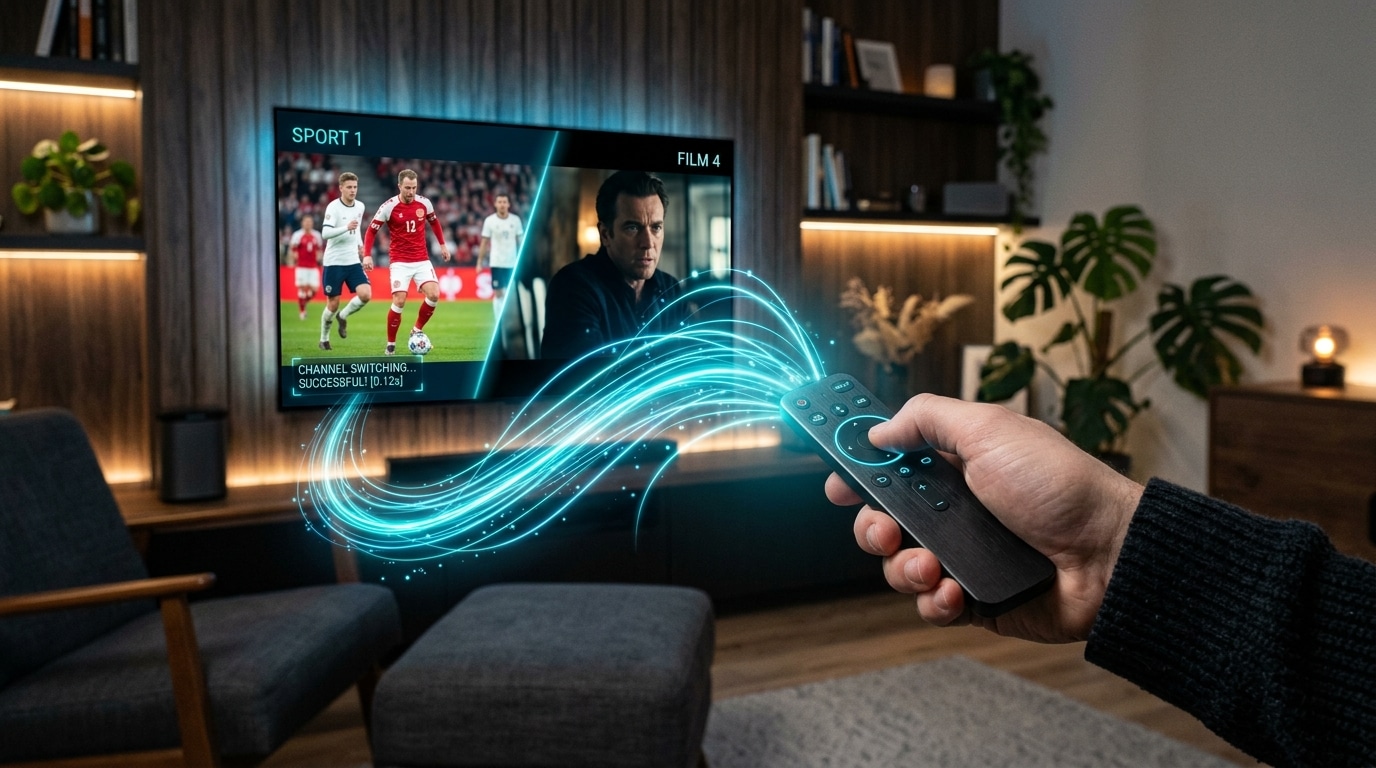
One of the most satisfying aspects of traditional cable and satellite television was the tactile immediacy of channel surfing. You could press the channel-up button on your remote control and cycle through a dozen stations in ten seconds, effortlessly catching glimpses of live sports, breaking news, or movies.
When viewers cut the cord and switch to internet protocol television, one of the most jarring downgrades they frequently encounter is slow channel switching—commonly known in broadcasting as high Zapping Time (ZTT).
Instead of an instantaneous transition, pressing the channel button results in a dark screen, a spinning loading wheel, or a stuttering audio buffer that takes anywhere from four to ten seconds before rendering a stable picture. When channel switching takes five seconds per channel, casually browsing a bouquet of fifty sports or news networks becomes an exercise in tedious frustration.
Many subscribers mistakenly assume that slow channel zapping is an unavoidable flaw of internet streaming, or that purchasing a faster 1,000 Mbps fiber internet package will automatically fix the delay.
In reality, raw internet download speed is rarely the primary culprit behind sluggish channel loading. Channel switching time is governed by a precise sequence of technical events: domain name resolution (DNS), TCP socket negotiation, transport stream demuxing, video buffer preloading, and waiting for the broadcast server's next compressed Keyframe (I-Frame).
By systematically optimizing your player settings, protocol selections, local network routing, and streaming hardware, you can cut channel loading delays down to under one to two seconds.
This comprehensive technical guide breaks down the six stages of stream initialization, analyzes why channel switching lags, and delivers twelve proven, step-by-step solutions to achieve instant, cable-grade channel zapping.
Experience Reflexsat IPTV
Upgrade your streaming with satellite-grade, anti-freeze 10.0 infrastructure. Over 50,000 live channels, 4K 60FPS sports, and 200,000+ VODs.
Quick Summary: The Instant Zapping Checklist
If you want immediate improvements before reading the deep technical breakdown below, execute these top priority tweaks:
- Switch Stream Format to MPEG-TS (.ts): If your provider allows format selection in Xtream Codes, choose MPEG-TS over HLS (.m3u8). MPEG-TS begins rendering video as soon as the first packet arrives, whereas HLS must download a full manifest and chunk file first.
- Set Player Buffer to "None" or "Small": In your player app (e.g., TiviMate), reduce playback buffer length from 3–5 seconds down to 0.5 seconds (Small/None).
- Change Router DNS to Cloudflare (1.1.1.1): Eliminate 200–500ms of domain handshake latency on every channel click by bypassing slow ISP DNS servers.
- Force Hardware Video Decoding: Set your player's video decoder to Hardware (ExoPlayer) to offload video decompression to your device's GPU rather than slow software emulation.
- Connect via Wired Ethernet or 5 GHz Wi-Fi: Eliminate wireless packet retries and jitter by avoiding congested 2.4 GHz wireless bands.
- Prune Unused Channel Bouquets: Hide bouquets you never watch to keep device RAM free for stream caching.
The Anatomy of Channel Switching: The 6 Stages of Zapping
To understand why channel switching takes several seconds, you must look under the hood at what your streaming device and player software actually do the moment you press a button on your remote control.
+-----------------------------------------------------------------------------------+
|                  THE 6 STAGES OF IPTV CHANNEL INITIALIZATION                      |
+-----------------------------------------------------------------------------------+
|  [ Remote Click ]                                                                 |
|         |                                                                         |
|  1. Disconnect Previous Socket  --> Closes active TCP connection & flushes RAM    |
|         |                                                                         |
|  2. DNS Resolution              --> Queries domain IP (e.g., stream.server.com)   |
|         |                                                                         |
|  3. TCP / TLS Handshake         --> Establishes secure network socket with CDN    |
|         |                                                                         |
|  4. Buffer Fill Stage           --> Preloads 0.5s to 3s of incoming video chunks  |
|         |                                                                         |
|  5. Demuxing & Codec Detection  --> Separates audio/video tracks & detects H.264  |
|         |                                                                         |
|  6. Waiting for Keyframe (IDR)  --> Waits for complete I-Frame before drawing TV  |
|         |                                                                         |
|  [ Smooth Video Plays on TV ]                                                     |
+-----------------------------------------------------------------------------------+
Stage 1: Tearing Down the Existing Connection
Before your player can load a new television station, it must cleanly terminate the previous connection. It sends a disconnect signal to the streaming server, releases hardware decoder surface memory, flushes the audio pipeline, and resets internal frame counters. On poorly optimized players or low-RAM devices, this teardown process can hang for half a second.
Stage 2: DNS (Domain Name System) Resolution
Your IPTV player reads the URL associated with the new channel (e.g., http://stream-cluster.reflexsat.com:8080/live/user/pass/12345.ts).
To connect, your device must ask a DNS server to translate that domain name into a numerical IP address.
If your home network relies on standard, unoptimized ISP DNS servers, this lookup query alone can take 200 to 600 milliseconds every single time you change the channel.
Stage 3: TCP Connection & HTTP Handshake
Once the numerical IP address is known, your streaming stick initiates a TCP three-way handshake (SYN, SYN-ACK, ACK) with the server port.
If your stream uses SSL/TLS encryption (https://), an additional cryptographic handshake occurs to exchange security certificates. High-latency connections or distant server locations add significant round-trip time (RTT) during this stage.
Stage 4: Socket Buffering and Pre-Loading
The broadcast server begins transmitting digital transport packets. Your player app does not display video the exact millisecond the first byte arrives; doing so would result in immediate stutter if the very next packet is delayed.
Instead, the player holds incoming data in temporary RAM until it reaches its configured Buffer Threshold (typically 1 to 3 seconds of video data).
If your player is configured with a large buffer size (e.g., 5 seconds), you are intentionally forcing yourself to wait five seconds before the video is allowed to start.
Stage 5: Container Demuxing and Codec Identification
Video broadcasts are transmitted inside digital transport containers (such as MPEG Transport Stream, .ts). Inside that single container are multiplexed data streams: the H.264 or H.265 video feed, multiple audio tracks (English, Spanish, AC3 surround), subtitle data, and timing clocks.
The player's demuxer must parse the container headers, separate the video from the audio, determine the exact codec profile, and initialize the hardware video decoder.
Stage 6: Waiting for the Critical Keyframe (I-Frame / IDR)
This is the single biggest technical bottleneck in digital video streaming, and the one least understood by casual viewers.
Modern video compression algorithms (H.264, H.265/HEVC) do not transmit 60 complete, individual pictures every second. Doing so would consume immense bandwidth. Instead, video is encoded into three types of frames:
- I-Frames (Intra-coded Frames / Keyframes): Complete, standalone digital images containing full picture data.
- P-Frames (Predicted Frames): Contain only the pixels that have changed since the previous frame.
- B-Frames (Bi-directional Frames): Contain mathematical predictions interpolating between previous and future frames.
+-----------------------------------------------------------------------------------+
|                        GROUP OF PICTURES (GOP) TIMELINE                           |
+-----------------------------------------------------------------------------------+
|  [I-Frame] ---- P-Frame ---- B-Frame ---- P-Frame ---- B-Frame ----> [I-Frame]    |
|  (Complete)     (Differences only - CANNOT render alone)             (Complete)   |
|      ^                                                                   ^        |
|      |                                                                   |        |
|  *Click channel here*                                                    |        |
|  Player must discard all P/B frames and WAIT until next I-Frame arrives! |        |
|  (If GOP = 4 seconds, you wait up to 4 seconds just for picture data!)  |        |
+-----------------------------------------------------------------------------------+
A video player cannot begin displaying video on a P-Frame or B-Frame because those frames only contain pixel differences relative to an image the player never saw.
Therefore, when you switch to a channel, the player must discard incoming data and wait in silence until the broadcaster transmits a complete I-Frame.
- If an IPTV provider configures their broadcast encoders with a short Keyframe Interval of 1 second, your player only waits an average of 500 milliseconds for an I-Frame.
- If a budget provider configures their encoders with a long Keyframe Interval of 4 to 6 seconds to maximize compression savings, you will be forced to stare at a black screen for up to four seconds simply waiting for an I-Frame to arrive.
At Reflexsat IPTV, our enterprise broadcast encoders are engineered with optimized, low-interval Group of Pictures (GOP) structures, ensuring immediate I-Frame delivery and rapid zapping.
The 12 Proven Fixes for Instant IPTV Channel Switching
Now that you understand the underlying engineering, apply these twelve systematic technical fixes to eliminate zapping lag:
+-----------------------------------------------------------------------------------+
|                        12 PROVEN FIXES FOR INSTANT ZAPPING                        |
+-----------------------------------------------------------------------------------+
| 1. Protocol: Select Xtream Codes API instead of heavy M3U text files              |
| 2. Container: Switch stream format from HLS (.m3u8) to MPEG-TS (.ts)              |
| 3. Player: Lower playback buffer length to "None" or "Small" (0.5s)               |
| 4. Decoder: Force Hardware (MediaCodec / ExoPlayer) acceleration                  |
| 5. Network: Switch router DNS to Cloudflare (1.1.1.1) or Google (8.8.8.8)        |
| 6. Connectivity: Replace 2.4 GHz Wi-Fi with Cat6 Ethernet or 5 GHz Wi-Fi         |
| 7. Memory: Close background TV apps and clear player cache partition              |
| 8. Router: Optimize MTU packet size and toggle router QoS prioritization          |
| 9. Playlist: Hide unneeded international bouquets to accelerate RAM indexing      |
| 10. Frame Rate: Disable Auto Frame Rate switching on channel-flipping sessions    |
| 11. Application: Deploy lightweight players like TiviMate or Televizo             |
| 12. Provider: Choose high-bitrate CDN servers with short Keyframe GOP intervals   |
+-----------------------------------------------------------------------------------+
Fix 1: Switch from M3U Playlist to Native Xtream Codes API
If you are currently loading your IPTV channels using a raw .m3u or .m3u8 playlist URL, you are placing unnecessary strain on your streaming device.
An M3U playlist is a massive, static text file containing tens of thousands of raw lines. When you change channels, the player software frequently re-scans the text file stored in temporary memory.
By contrast, the Xtream Codes API utilizes an active database connection. Your player communicates directly with the provider's server through structured JSON queries. Category lookups, channel metadata, and stream handshakes occur dynamically in milliseconds.
Action Step: Re-add your subscription to your player using your Server URL, Username, and Password rather than an M3U link.
Fix 2: Switch Stream Format from HLS (.m3u8) to MPEG-TS (.ts)
Within your Xtream Codes account settings (supported in apps like TiviMate, Smarters, and XCIPTV), providers allow you to select which underlying stream transport protocol you want to receive: HLS or MPEG-TS.
- HLS (HTTP Live Streaming /
.m3u8): Designed originally by Apple for mobile devices. HLS cuts live broadcasts into discrete file segments (typically 2 to 6 seconds long). When you click a channel, your player must first download an index playlist file, locate the newest segment, download the entire multi-megabyte video file chunk, and then begin playback. This inherently introduces a 3 to 6-second delay. - MPEG-TS (MPEG Transport Stream /
.ts): The classic, broadcast-grade streaming protocol. MPEG-TS is an uninterrupted, continuous byte stream. The moment your device establishes a TCP socket, video packets pour directly into your decoder pipeline.
+-----------------------------------------------------------------------------------+
|                        MPEG-TS vs. HLS ZAPPING SPEED                              |
+-----------------------------------------------------------------------------------+
| Metric                     | MPEG-TS (.ts)                | HLS (.m3u8)           |
+----------------------------+------------------------------+-----------------------+
| Stream Delivery            | Continuous real-time stream  | Segmented file chunks |
| Initial Manifest Download  | None required                | Required on click     |
| Average Zapping Time       | 0.8 – 1.8 seconds            | 3.5 – 6.0 seconds     |
| Sensitivity to Network Drop| Moderate                     | Very Low              |
| Recommended Use Case       | High-speed home broadband    | Cellular mobile data  |
+-----------------------------------------------------------------------------------+
Action Step: In TiviMate, go to Settings > Playlists > [Your Playlist] > Xtream Codes Parameters > Output Format. Change it from "HLS" to MPEG-TS.
Fix 3: Lower Playback Buffer Size to "None" or "Small"
Every modern IPTV player includes a buffer slider that dictates how many seconds of video data must accumulate in RAM before rendering starts.
Many users mistakenly believe that cranking the buffer slider up to "Large" (5 to 10 seconds) will prevent buffering. While a large buffer can help smooth out erratic, low-speed mobile connections, its severe downside is that you must wait for that entire buffer to fill every single time you change the channel.
If your home internet connection is stable and delivers at least 25 to 50 Mbps of clean bandwidth, you do not need an artificial 5-second buffer.
Action Step:
- In TiviMate: Go to Settings > Playback > Buffer Size and set it to None or Small.
- In IPTV Smarters: Go to Settings > Player Settings and select Built-in Player with low caching.
- On a stable wired connection, setting the buffer to "None" enables near-instantaneous zapping that rivals legacy digital cable.
Fix 4: Force Hardware Acceleration (MediaCodec / ExoPlayer)
Video decoding can be performed in one of two ways:
- Software Decoding (CPU): The streaming stick's general-purpose CPU calculates every pixel decompression mathematically. This is slow, causes the device to run hot, and delays channel startups by 1 to 2 seconds.
- Hardware Decoding (GPU): The incoming stream bypasses the CPU and is routed directly into the device's dedicated video decoding chip (e.g., Nvidia Tegra, Apple A15 Bionic, or MediaTek GPU).
If your player defaults to software decoding or a generic VLC software core, channel demuxing will feel sluggish.
Action Step: In your player's settings menu, locate the Video Decoder option and set it explicitly to Hardware or Hardware+ (ExoPlayer).
Fix 5: Replace Slow ISP DNS with Cloudflare (1.1.1.1) or Google (8.8.8.8)
As detailed in Stage 2 of the stream initialization process, your streaming stick must resolve the host domain name of the channel before it can download a single video frame.
Most residential routers inherit default DNS servers from local internet service providers (such as Comcast, Spectrum, AT&T, BT, or Virgin Media). These ISP servers are notoriously slow, poorly cached, and frequently overloaded during evening primetime hours. Furthermore, some ISPs actively inject artificial response delays when resolving known streaming domains.
Switching to an independent, globally distributed Anycast DNS resolver cuts domain lookup times from 300ms down to under 15 milliseconds.
+-----------------------------------------------------------------------------------+
|                        DNS LOOKUP LATENCY COMPARISON                              |
+-----------------------------------------------------------------------------------+
| Standard Residential ISP DNS  : [ 250ms – 550ms delay per channel click ]         |
| Google Public DNS (8.8.8.8)   : [ 25ms – 40ms delay ]                             |
| Cloudflare DNS (1.1.1.1)      : [ 10ms – 18ms delay ] <--- FASTEST FOR IPTV      |
+-----------------------------------------------------------------------------------+
Action Step:
- On Amazon Firestick: Go to Settings > Network, select your Wi-Fi network, click Forget Network, reconnect, select Advanced Settings, enter your static IP and Gateway, and set DNS 1 to 1.1.1.1 and DNS 2 to 1.0.0.1.
- On Apple TV 4K: Go to Settings > Network > Wi-Fi/Ethernet > Configure DNS, choose Manual, and enter
1.1.1.1. - Or configure DNS directly on your home router so every device in your household benefits automatically.
Fix 6: Transition from 2.4 GHz Wi-Fi to 5.0 GHz or Wired Ethernet
The 2.4 GHz wireless frequency band is heavily congested in almost every residential neighborhood. It suffers from interference from neighboring routers, Bluetooth devices, smart home hubs, and microwave ovens.
When your streaming stick experiences wireless packet collision, the TCP protocol pauses stream initialization to execute re-transmission requests. This adds unpredictable, variable latency to channel zapping.
Action Step:
- Whenever possible, connect your streaming box directly to your router using a physical Cat6 Ethernet cable.
- If running a cable is impossible, ensure your streaming stick is connected exclusively to your router's 5.0 GHz Wi-Fi network.
- Position your router within line-of-sight of your television, or deploy a modern Wi-Fi 6 mesh network node nearby.
Fix 7: Clear Application Cache and Free Up Device RAM
Streaming sticks like the Amazon Fire TV Stick 4K Max or Chromecast with Google TV possess limited internal RAM (typically between 1.5GB and 2GB).
Over weeks of continuous use, background apps (Netflix, YouTube, Prime Video, system updates) remain suspended in volatile memory. Simultaneously, your IPTV player accumulates hundreds of megabytes of cached channel logos, temporary EPG files, and thumbnail data.
When RAM is depleted, the operating system must aggressively page memory to flash storage before it can allocate buffers for a newly clicked channel, causing severe zapping stutter.
Action Step:
- Go to your streaming stick system Settings > Applications > Manage Installed Applications.
- Select your IPTV player app and click Clear Cache (never click "Clear Data", which erases your credentials).
- Force-stop unused background applications.
- Restart your streaming device at least once a week to refresh system memory pools.
Fix 8: Optimize Router MTU (Maximum Transmission Unit) Size
The Maximum Transmission Unit (MTU) specifies the largest physical packet size (in bytes) that your router can transmit over the internet without fragmenting the packet into smaller pieces.
The standard internet MTU is 1500 bytes. However, if you are using certain PPPoE fiber connections or streaming through a virtual private network (VPN), the connection overhead reduces your functional MTU to 1420 – 1492 bytes.
If your device attempts to send 1500-byte packets over a 1450-byte MTU route, your router must physically chop every incoming video packet in half. This packet fragmentation introduces processing overhead, increases latency, and significantly slows down initial channel socket handshakes.
Action Step:
- Access your router's administration dashboard (typically
192.168.1.1or192.168.0.1). - Locate the WAN / Internet Settings menu.
- Ensure your MTU size is configured correctly according to your ISP's specification (standard DHCP cable/fiber: 1500; PPPoE: 1492; active VPN routers: 1420).
Fix 9: Prune Unused Channel Bouquets to Accelerate RAM Indexing
One of the most self-destructive habits of IPTV users is loading an uncurated playlist containing 80,000 channels across 40 countries, even though they only watch English-language domestic networks and sports.
When an IPTV player contains an enormous, bloated channel list, the internal database engine must index thousands of table rows every time you switch categories or navigate between channels.
Action Step:
- In TiviMate: Go to Settings > Playlists > [Your Playlist] > Manage Groups.
- Toggle OFF every international category, foreign language bouquet, or content group you do not watch.
- Reduce your active channel list down to the 500 to 2,000 channels you actually care about.
- Your player interface will instantly feel twice as responsive, and channel switching times will drop noticeably.
Fix 10: Temporarily Disable Auto Frame Rate (AFR) When Channel Surfing
Earlier in our guide on the best IPTV players, we praised Auto Frame Rate (AFR) matching for its ability to eliminate motion judder on 50 FPS and 60 FPS sports broadcasts.
However, AFR operates by physically sending a handshake signal through your HDMI cable to change your television's display panel refresh rate (e.g., switching your TV from 60Hz to 50Hz or 24Hz).
Whenever your TV executes an HDMI refresh rate handshake, the television panel physically goes black for 1 to 2 seconds while the display clock synchronizes with the streaming box.
If you are actively sitting on the couch rapidly surfing through channels to see what is on, leaving AFR enabled will add a mandatory 2-second HDMI black screen to every single channel change.
Action Step:
- If you plan on engaging in rapid channel surfing, turn Auto Frame Rate (AFR) to OFF in your player settings.
- Once you locate the specific sports broadcast or movie you want to watch for the next two hours, toggle AFR back ON to enjoy perfectly fluid motion.
Fix 11: Switch to an Ultra-Lightweight Player Engine
If you have applied all network and format tweaks and your channel switching remains unacceptably slow, your streaming hardware may simply be too underpowered to run feature-heavy, graphical applications smoothly.
If you are running on an older Firestick Lite, a generic budget Android box, or an aging smart TV, heavy applications like iMPlayer or full-featured TiviMate setups can struggle.
Action Step:
- Install an ultra-lightweight, performance-optimized player like Televizo or XCIPTV.
- Televizo uses a stripped-down code architecture that minimizes graphical compositing overhead, enabling instantaneous stream handshakes even on low-spec hardware with only 1GB of RAM.
Fix 12: Partner with a High-Performance, Low-Latency Provider
You can implement every client-side optimization in existence, but if your IPTV provider hosts their streams on overloaded virtual servers in a distant continent with 6-second Keyframe intervals, your channel switching will remain sluggish.
Instant zapping requires broadcast infrastructure engineered for real-time delivery:
- Distributed CDN Edge Caching: Servers situated geographically close to your location, keeping network round-trip ping under 20 milliseconds.
- Short Keyframe (GOP) Encoding: Encoders calibrated to transmit fresh I-Frames every 1.0 to 1.5 seconds, allowing your player to render video immediately upon connection.
- Uncongested 10Gbps Server Ports: Robust network interfaces that never throttle socket handshakes during high-traffic evening hours.
At Reflexsat IPTV, our Anti-Freeze 10.0 architecture is engineered specifically to eliminate latency bottlenecks at the server level, delivering sub-second channel zapping across all major bouquets.
The Zapping Speed Troubleshooting Matrix
Use this quick-reference diagnostic matrix to identify your specific symptom and apply the correct fix:
| Observed Symptom | Primary Root Cause | Targeted Solution |
|---|---|---|
| Black screen lasts 5–8 seconds, then video plays smoothly | Stream format is HLS (.m3u8), forcing chunk preloads | Switch output format in Xtream Codes settings to MPEG-TS (.ts) |
| Black screen lasts exactly as long as TV HDMI renegotiation | TV panel is executing an Auto Frame Rate (AFR) handshake | Toggle Auto Frame Rate matching OFF during channel-flipping |
| Loading spinner rotates for 3–5 seconds before audio/video starts | Player buffer length is set too high | Lower playback buffer size in player settings to None or Small |
| Audio starts instantly, but video takes 3+ seconds to appear | Waiting for broadcaster Keyframe (I-Frame) or decoder lag | Force Hardware Video Decoding (MediaCodec / ExoPlayer) |
| Channel switching is fast on Tuesday morning, slow on Sunday night | ISP routing congestion or server upstream load during sports | Switch router DNS to Cloudflare (1.1.1.1) or enable high-speed VPN |
| Zapping is fast on Firestick 4K Max, but slow on built-in Smart TV | Smart TV processor has exhausted RAM and is memory throttling | Use external streaming box or switch TV app to lightweight IBO Player |
| Player freezes or crashes when rapidly scrolling through categories | Massive unpruned playlist exhausting device memory | Hide unused international bouquets in Manage Groups settings |
Player-by-Player Configuration Walkthrough for Fast Zapping
Here are the exact menu locations to configure optimal zapping settings in the three most popular IPTV players:
1. TiviMate IPTV Player (Android TV / Firestick)
- Open TiviMate and press the Left Arrow on your remote to open the main menu.
- Navigate to Settings > Playlists and select your active playlist.
- Click Xtream Codes Parameters.
- Select Output Format and choose MPEG-TS.
- Return to Settings > Playback.
- Set Buffer Size to None (or Small).
- Ensure Video Decoder is set to Hardware.
- Go to Settings > Appearance > Player and disable unnecessary transition animations.
2. IPTV Smarters Pro (Cross-Platform)
- Open IPTV Smarters and click the Settings (Gear icon) in the top-right corner.
- Select Stream Format.
- Choose MPEG-TS (.ts) instead of Default/HLS.
- Go to Player Settings.
- Select Hardware Decoder (Native ExoPlayer).
- Under Buffer Size, drag the slider to the lowest available setting.
- Click Save Changes.
3. XCIPTV Player (Android TV / Firestick)
- Open XCIPTV and navigate to Settings > Player.
- Under Live Player Selection, verify that Built-in Player (ExoPlayer) is selected.
- Scroll down to Stream Format and select TS.
- Under Network Caching, adjust the cache buffer to Low (500ms).
- Restart the application to apply the new memory parameters.
Frequently Asked Questions
Final Summary: Enjoy Instant, Broadcast-Grade Zapping
Channel surfing is an essential part of the television experience. You should never settle for an IPTV setup that forces you to stare at a black screen and spinning loading wheel for six seconds every time you want to see what is playing on another network.
By applying the twelve technical optimizations outlined in this guide:
- Switching to MPEG-TS output format
- Minimizing player playback buffers to 0.5 seconds
- Deploying fast Cloudflare DNS (1.1.1.1)
- Leveraging GPU hardware decoding
- Connecting through wired Ethernet or clean 5.0 GHz Wi-Fi
You can transform sluggish channel loading into an instantaneous, cable-grade browsing experience with sub-second zapping response.
To experience television powered by enterprise streaming infrastructure, explore Reflexsat IPTV. Featuring Anti-Freeze 10.0 load-balanced servers, low-latency Keyframe encoding, 50,000+ live HD and 4K channels, and 24/7 VIP assistance on WhatsApp, we deliver the fastest, most reliable streaming in the industry.
Choose your subscription plan today on our pricing page, check our channel lineup, or reach out directly on our live support desk to request a free 24-hour test line and experience true instant zapping firsthand.