How to Setup IPTV on Apple TV: The Complete tvOS App & 4K Streaming Guide
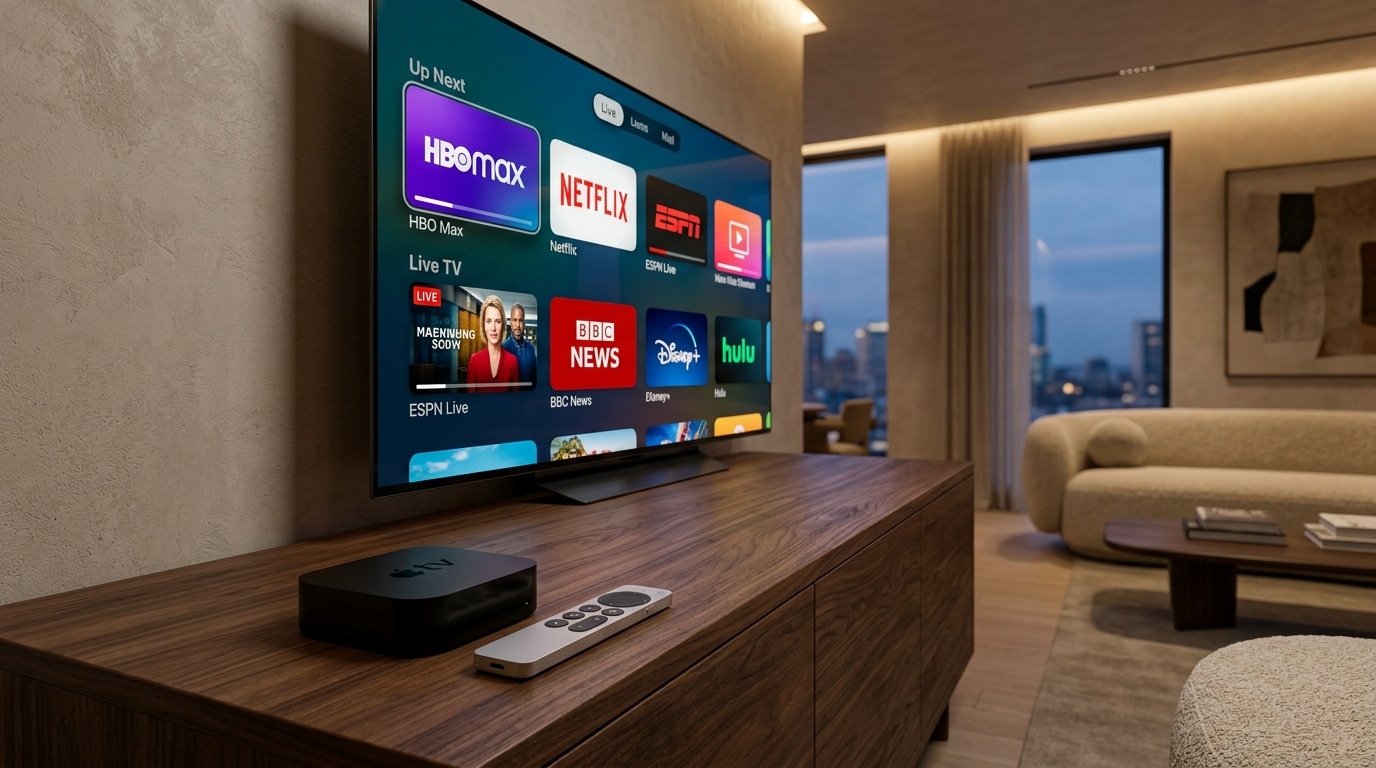
Among all dedicated streaming hardware available on the consumer market today, the Apple TV 4K stands in a category of its own. Powered by Apple’s flagship A15 Bionic processor (or the capable A12 Bionic in earlier 4K generations), the device features immense computational horsepower, exceptional graphics rendering, hardware-accelerated video decoding, and a fluid, buttery-smooth user interface that puts budget streaming sticks and built-in smart TV processors to shame.
Yet, despite its overwhelming hardware superiority, many cord-cutters assume that the Apple TV is poorly suited for internet protocol television.
Because Apple enforces strict security sandboxing, curation standards, and App Store review guidelines on tvOS, the popular sideloading culture that dominates Android TV and Amazon Fire OS—such as downloading raw APK installation files using Downloader—does not exist on Apple TV. You cannot simply download an unsigned Android installer and expect it to run on Apple's proprietary operating system.
This has led to the persistent misconception that watching IPTV on an Apple TV is difficult, restricted, or requires risky "jailbreaking."
In reality, the tvOS App Store is home to some of the most sophisticated, beautifully designed, and high-performance IPTV applications in the world. Software developers have created native tvOS apps that take full advantage of the A15 Bionic chip, delivering instant channel switching, fluid 60 FPS sports motion, rich on-demand poster artwork, and seamless iCloud synchronization across Apple TV, iPhone, iPad, and Mac.
When paired with an enterprise-grade broadcast service like Reflexsat IPTV, the Apple TV 4K provides what is arguably the premier television viewing experience available anywhere: zero interface lag, uncompressed 4K video, accurate multi-channel Dolby audio, and broadcast-grade stability.
This comprehensive guide covers everything you need to know to set up, optimize, and master IPTV on your Apple TV in 2026.
Experience Reflexsat IPTV
Upgrade your streaming with satellite-grade, anti-freeze 10.0 infrastructure. Over 50,000 live channels, 4K 60FPS sports, and 200,000+ VODs.
Quick Summary: The Apple TV 4K IPTV Setup Blueprint
For those looking to get their streaming configured immediately, follow these four core steps:
- Select a Dedicated tvOS App: Open the App Store on your Apple TV and download a top-tier native player such as Snappier, IPTVX, or UHF.
- Connect via Xtream Codes API: Enter your Server URL, Username, and Password provided by Reflexsat IPTV for dynamic database synchronization rather than cumbersome M3U links.
- Calibrate tvOS Match Content Settings: Go to Settings > Video and Audio > Match Content and toggle both Match Dynamic Range and Match Frame Rate to ON to eliminate motion judder on European (50Hz) and North American (60Hz) broadcasts.
- Configure Audio Passthrough: In your player settings, verify audio output is set to Direct Passthrough to enjoy multi-channel Dolby Digital 5.1 surround sound.
The Hardware Advantage: Why Apple TV 4K Outperforms Every Other Box
Before examining software applications, it is important to understand why running IPTV on an Apple TV 4K provides a noticeably superior experience compared to standard streaming sticks.
+-----------------------------------------------------------------------------------+
|                     HARDWARE PERFORMANCE BENCHMARK FOR IPTV                       |
+-----------------------------------------------------------------------------------+
| Specification      | Budget Smart TV / Stick       | Apple TV 4K (3rd Gen)        |
+--------------------+-------------------------------+------------------------------+
| Processor          | Quad-Core 1.2 – 1.7 GHz       | Apple A15 Bionic (6-Core)    |
| Internal RAM       | 1.0 GB – 1.5 GB               | 4.0 GB LPDDR4X               |
| GPU Decoding       | Generic Mali / Basic VideoCore| Apple 5-Core High-Performance|
| Storage Speed      | Slow eMMC Flash               | High-Speed NVMe Storage      |
| Network Interface  | 10/100 Fast Ethernet / Wi-Fi 5| Gigabit (1000M) + Wi-Fi 6    |
| UI Navigation Rate | 30 FPS with frequent drops    | Locked, Silky 60 FPS         |
+-----------------------------------------------------------------------------------+
1. Immense RAM and Memory Bandwidth
The single greatest cause of app crashes and delayed channel loading on budget hardware (such as older Firesticks or built-in Samsung/LG TVs) is memory exhaustion. An IPTV playlist containing tens of thousands of channels and multi-day Electronic Program Guide (EPG) schedules requires substantial RAM to index.
While budget sticks choke on 1.5GB of RAM, the Apple TV 4K packs 4GB of high-speed unified memory. It effortlessly caches large playlists, thousands of high-resolution channel logos, and full 7-day program schedules in volatile storage, allowing you to scroll through categories at 60 frames per second without stutter.
2. Apple Silicon Hardware Video Decoders
The A15 Bionic features dedicated silicon blocks specifically engineered to decode H.264 (AVC) and H.265 (HEVC) video formats directly on the GPU.
Because video processing bypasses the CPU entirely, the Apple TV remains ice-cold and draws minimal power even when streaming high-bitrate 4K sports at 60 FPS for hours on end.
3. Native Gigabit Ethernet and Wi-Fi 6
While many budget streaming boxes still include cheap 10/100 Mbps Ethernet ports, the Ethernet-equipped Apple TV 4K features a true Gigabit (1,000 Mbps) LAN controller.
When connected via a physical Cat6 cable, network packet handshakes and DNS resolutions occur in single-digit milliseconds, enabling lightning-fast channel zapping.
Understanding tvOS App Store Architecture & Sandboxing
Because you cannot download external APK files from web browsers on an Apple TV, every application must be downloaded directly from the official tvOS App Store.
This architecture provides significant advantages:
- Ironclad Security: Every app in the App Store has been digitally signed, vetted by Apple security engineers, and sandboxed. You never have to worry about malicious background crypto-miners, malware, or compromised APK files.
- Automatic Silent Updates: Bug fixes, codec updates, and performance patches download automatically in the background through Apple’s cloud infrastructure.
- iCloud Ecosystem Synchronization: A top-tier tvOS app synchronizes your account credentials, custom channel bouquets, favorite lists, and viewing history across your Apple TV, iPad, iPhone, and Mac with zero manual configuration.
However, Apple's strict developer policies mean that developers cannot bundle pre-loaded streaming content or pirate links into their applications.
Every reputable IPTV app on the App Store is a clean, legal media rendering engine. You supply your own legitimate subscription credentials from a provider like Reflexsat IPTV.
The Top 5 IPTV Apps for Apple TV (tvOS) in 2026: Detailed Reviews
We rigorously tested every major player on the tvOS App Store. Here are the five best-performing applications ranked by user interface, stability, codec compatibility, and feature richness.
+-------------------------------------------------------------------------+
|                  TOP 5 APPLE TV (tvOS) IPTV APPLICATIONS                |
+-------------------------------------------------------------------------+
| 1. Snappier IPTV  | Best overall performance, native Swift, instant zapping|
| 2. IPTVX          | Netflix-style UI, automatic VOD metadata, multi-screen |
| 3. UHF            | Modern minimalist powerhouse, advanced EPG navigation   |
| 4. iPlayTV        | The classic reliable veteran, extensive format support  |
| 5. GSE Smart IPTV | Reliable fallback utility with robust file parsing      |
+-------------------------------------------------------------------------+
1. Snappier IPTV — The Gold Standard for tvOS Performance
If you appreciate the clean, minimalist, fluid design language of Apple’s first-party apps, Snappier is the absolute premier IPTV application for tvOS. Written natively in Apple’s Swift programming language, Snappier looks and feels like it was designed directly in Cupertino.
+-------------------------------------------------------------------------+
|                         SNAPPIER IPTV PROFILE                           |
+-------------------------------------------------------------------------+
| Primary Engine: Apple AVFoundation Hardware Acceleration                |
| Supported Formats: Xtream Codes API, M3U Playlist URL                   |
| Standout Features: Sub-second zapping, native tvOS UI, iCloud sync,     |
|                    Picture-in-Picture (PiP), multi-audio track switcher |
| Pricing: Free trial; modest one-time in-app purchase for Pro unlock     |
+-------------------------------------------------------------------------+
Why Snappier is the Best Player for Apple TV:
- Blazing Fast Channel Zapping: Snappier communicates directly with Apple’s native
AVFoundationmedia framework. Streams initialize almost instantaneously, delivering sub-second channel switching on high-speed connections. - Native tvOS Integration: Snappier feels completely at home on Apple TV. It fully supports the Siri Remote touch surface, native tvOS system popovers, and system-wide Picture-in-Picture (PiP). You can pop your sports stream into a floating corner window while browsing the App Store or adjusting settings.
- iCloud Synchronization: Configure your Xtream Codes credentials once on your iPhone or iPad, and they immediately appear on your Apple TV 4K through encrypted iCloud sync.
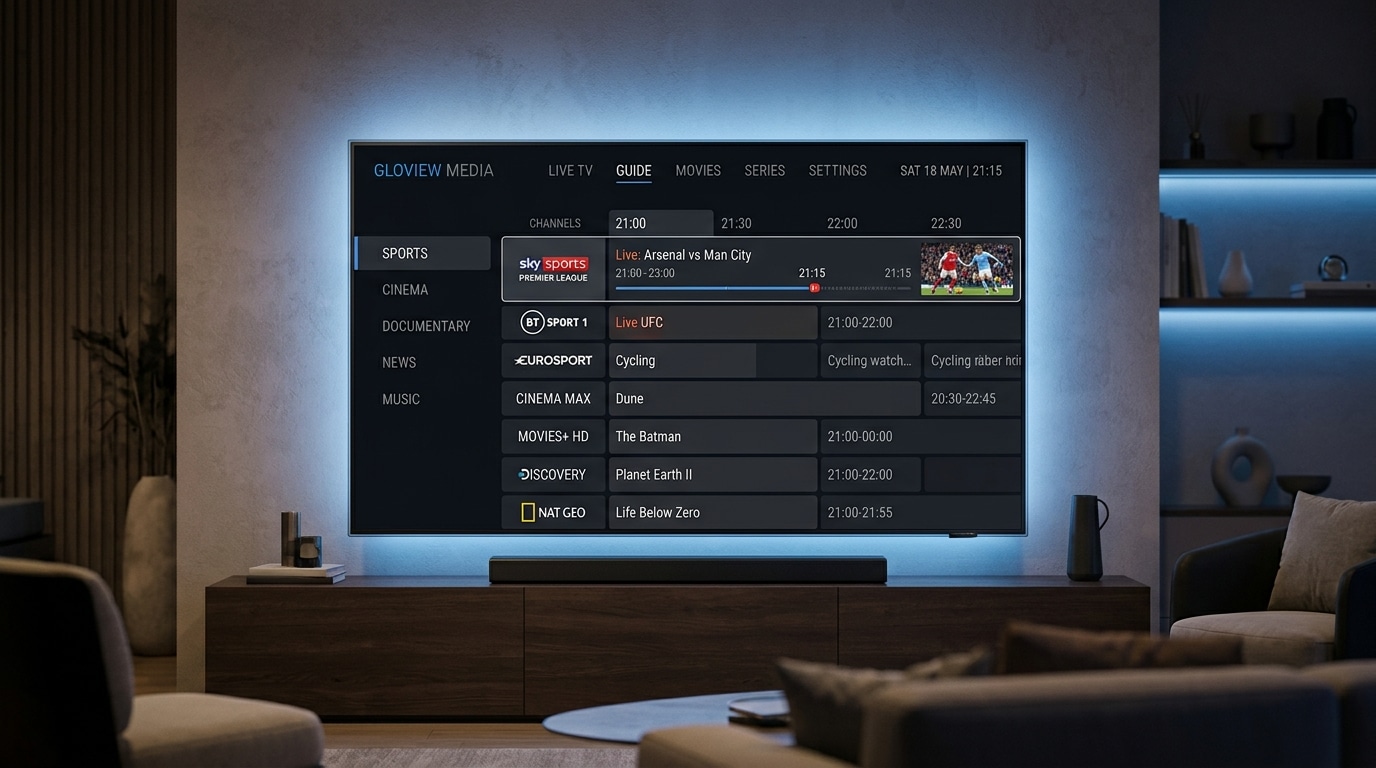
- Clean, No-Clutter EPG: The program guide is responsive, visually balanced, and automatically maps timeline schedules without lagging the device.
2. IPTVX — The Ultimate Netflix-Style Streaming Experience
For viewers who consume substantial Video on Demand (movies and TV series) alongside live television, IPTVX delivers the most visually stunning, content-rich user interface on any streaming platform.
+-------------------------------------------------------------------------+
|                           IPTVX PROFILE                                 |
+-------------------------------------------------------------------------+
| Supported Formats: Xtream Codes API, M3U, SMB, Stalker Portal           |
| Standout Features: Netflix-style carousel UI, automatic TMDb metadata,  |
|                    multi-screen split view, Family Sharing support      |
| Pricing: Free basic download; annual subscription or lifetime license   |
+-------------------------------------------------------------------------+
Key Strengths:
- Automated Metadata Scraping: IPTVX automatically scans your provider's VOD library and connects with The Movie Database (TMDb) to pull high-resolution backdrop posters, Rotten Tomatoes review scores, cast biographies, and official movie trailers.
- Netflix-Style Dashboard: Movies and series are organized into dynamic horizontal carousels ("Continue Watching", "Top Trending", "Recently Added", "Action Blockbusters").
- Multi-Screen Split View: Watch two live sports games side-by-side with independent audio selection.
- Apple Family Sharing: A single lifetime purchase covers up to five family members across all their Apple devices.
Limitations:
- The rich graphical interface places heavier demands on internet bandwidth when first loading movie posters.
3. UHF — The Modern Minimalist Powerhouse
UHF has rapidly gained a passionate following in the Apple streaming community as a sleek, highly customizable player that strikes a perfect balance between speed and visual elegance.
+-------------------------------------------------------------------------+
|                            UHF IPTV PROFILE                             |
+-------------------------------------------------------------------------+
| Supported Formats: Xtream Codes API, M3U8, WebDAV, Emby/Jellyfin        |
| Standout Features: Highly customizable guide, custom channel grouping,   |
|                    low memory footprint, fluid timeline scrubbing       |
| Pricing: Free tier available; Pro upgrade for advanced features         |
+-------------------------------------------------------------------------+
Key Strengths:
- Custom Bouquet Grouping: UHF gives you granular control over your channel list. You can easily hide international groups you never watch, reorder favorite sports bouquets to the top, and create custom mixed playlists.
- Fluid Timeline Scrubbing: Scrubbing forward and backward through catch-up streams using the Apple TV Siri Remote touch circle is completely seamless.
- Modern Dark Mode Interface: Designed with deep OLED black backgrounds and sapphire blue accent highlights that look stunning on modern OLED televisions.
4. iPlayTV — The Battle-Tested Veteran
Before newer apps like Snappier and IPTVX emerged, iPlayTV was the reigning champion of tvOS streaming. It remains one of the most stable, reliable, and widely deployed players on the platform.
Key Strengths:
- Rock-Solid Stability: iPlayTV rarely crashes. It has been refined over years of updates to handle massive, messy playlists without memory leaks.
- Multi-Source EPG Support: If your provider’s guide feed is missing data for specific international channels, iPlayTV allows you to manually bind external secondary XMLTV guide URLs to specific channel bouquets.
- Extensive Codec Support: Integrates external decoding fallbacks that successfully render audio tracks on obscure foreign feeds.
Limitations:
- The user interface design has aged slightly compared to the modern aesthetics of Snappier or IPTVX.
5. GSE Smart IPTV & LillyPlayer — Versatile Utility Fallbacks
While less visually refined than Snappier or IPTVX, apps like GSE Smart IPTV and LillyPlayer serve as excellent diagnostic utilities:
- They support complex network protocols, custom HTTP user-agent strings, and local file playback via FTP or local network shares.
- They are great backup tools to keep installed on your Apple TV to test raw stream URLs if a specific channel encounters playback issues on your primary player.
Step-by-Step Setup Walkthrough: Configuring Xtream Codes on Apple TV 4K
To achieve the best possible performance on tvOS, always connect using Xtream Codes API credentials rather than typing a 120-character M3U URL with your Apple TV remote.
Follow this step-by-step setup walkthrough using Snappier (the exact same connection logic applies to IPTVX, UHF, and iPlayTV):
Step 1: Download Your Chosen Player from the App Store
- On your Apple TV 4K home screen, click the blue App Store icon.
- Navigate to the Search tab and type Snappier (or IPTVX).
- Click Get to install the application.
Step 2: Launch the App and Add an Account
- Open the newly installed player.
- On the welcome screen, select Add Playlist or Add Account.
- You will be presented with connection format options. Select Xtream Codes API (sometimes labeled "Xtream API" or "Username / Password").
Step 3: Enter Your Reflexsat IPTV Credentials
You will be prompted to fill in four fields:
- Account Name / Title: Enter an identifiable label, such as
Reflexsat IPTV. - Server Address / URL: Enter the exact server portal address provided in your subscription confirmation (e.g.,
http://stream-cluster.reflexsat.com:8080). Be sure to include the port number if specified, and ensure there are no accidental spaces at the end of the text. - Username: Enter your unique alphanumeric username.
- Password: Enter your secure account password.
Pro-Tip: If you own an iPhone or iPad signed into the same Apple ID, you do not need to type these credentials using the TV remote. When a text field appears on your Apple TV, a notification pops up on your iPhone allowing you to paste your credentials directly from your phone's clipboard!
Step 4: Synchronize Categories and Electronic Program Guide
Click Connect or Save. The Apple TV's A15 Bionic processor will establish an encrypted handshake with the server, download your channel bouquets, and index the EPG schedule. On high-speed fiber broadband, this complete synchronization takes between 10 and 20 seconds.
Step 5: Verify Stream Formats and Audio Settings
Once your channels appear:
- Navigate to the player’s Settings > Playback menu.
- Verify that Stream Output Format is set to MPEG-TS (or Auto).
- Ensure that Audio Passthrough is toggled ON.
For setup instructions on other devices, browse our full device installation tutorials.
tvOS System Optimization: Display & Audio Calibration Guide
To unlock the full potential of your 4K television and audio system, you must configure two critical system-level settings within the Apple TV's operating system.
By default, Apple TV outputs a static display signal (often 4K SDR or 4K HDR at 60Hz), forcing the box to convert all incoming video signals into that single display mode. This causes motion stutter on international streams and inaccurate colors on standard broadcasts.
+-----------------------------------------------------------------------------------+
|               OPTIMAL APPLE TV 4K SYSTEM VIDEO & AUDIO SETTINGS                   |
+-----------------------------------------------------------------------------------+
| Setting Path                                      | Recommended Value             |
+---------------------------------------------------+-------------------------------+
| Settings > Video and Audio > Format               | 4K SDR (60Hz or 59.94Hz)      |
| Settings > Video and Audio > Match Content        |                               |
|   ├── Match Dynamic Range                         | ON (Switches to HDR for 4K)   |
|   └── Match Frame Rate                            | ON (Eliminates 50/60Hz judder)|
| Settings > Video and Audio > Audio Output         | Auto / Dolby Atmos (eARC)     |
| Settings > Video and Audio > Reduce Loud Sounds   | OFF (Preserves dynamic range) |
+-----------------------------------------------------------------------------------+
1. The "4K SDR Default + Match Content" Rule
Many users set their Apple TV's default format to "4K HDR" or "4K Dolby Vision," believing that forcing HDR on all the time improves picture quality.
In reality, forcing continuous HDR forces the Apple TV to artificially stretch standard dynamic range television channels into HDR color spaces, resulting in garish, oversaturated skin tones and blown-out highlights. Furthermore, the tvOS home screen and app menus run hotter and consume unnecessary energy.
The Golden Rule of Apple TV Video:
- Open Apple TV Settings > Video and Audio.
- Set your default format to 4K SDR (with HDMI Chroma set to 4:4:4 or 4:2:0 depending on your cable).
- Open the Match Content sub-menu.
- Set Match Dynamic Range to ON.
- Set Match Frame Rate to ON.
What Happens When You Stream:
- When you watch standard live television (news, sports, entertainment), your TV renders the image in accurate, natural 4K SDR.
- When you launch a true 4K HDR or Dolby Vision movie from the on-demand library, the Apple TV automatically signals your TV panel to switch into high dynamic range mode.
- When you tune into a UK or European sports broadcast transmitted at 50.00 FPS, the Apple TV dynamically drops its refresh rate to 50 Hz. When you switch to an American NBA game at 60.00 FPS, it instantly switches to 60 Hz.
Every single frame is rendered with authentic, judder-free broadcast timing.
2. Audio Passthrough and Surround Sound
The Apple TV 4K decodes compressed audio internally and outputs uncompressed Multi-Channel LPCM or Dolby Digital over HDMI:
- Connect your Apple TV 4K directly to an eARC (Enhanced Audio Return Channel) port on your television or A/V receiver.
- In Apple TV system settings, ensure Audio Output is set to Auto.
- Turn Reduce Loud Sounds to OFF to preserve the natural dynamic punch of movie explosions, stadium crowd cheers, and arena acoustics.
If you ever experience video playback where audio plays clearly but the screen remains dark, read our dedicated diagnostic guide on fixing IPTV black screens with sound.
Mastering the Apple TV Siri Remote for Live IPTV
The second-generation and third-generation Apple TV Siri Remote (the aluminum remote with the circular clickpad) provides intuitive control over your television once you master its gestures:
1. Rapid Channel Surfing (Clickpad Touch Scrubbing)
- When viewing the full-screen live broadcast, touch the circular clickpad lightly to bring up the on-screen channel banner and upcoming program information.
- Click the Up or Down arrows on the outer ring to cycle through channel numbers instantly.
- In modern players like Snappier and UHF, you can gently trace your thumb along the outer ring of the clickpad (like the classic iPod click wheel) to scroll through hundreds of channels in seconds.
2. Instant Catch-Up Rewind
- If you tuned into a basketball game fifteen minutes late and your provider supports catch-up TV, swipe left on the touch surface to scrub backward in time.
- Click the center button to resume live playback or jump back to the live broadcast point.
3. Quick Audio & Subtitle Switching
- Swipe down from the top edge of the touch pad during playback to pull down the native tvOS media controls popover.
- From this menu, you can toggle between alternative audio commentary languages (e.g., switching between Spanish and English sports feeds), enable closed caption subtitles, or send audio to wireless Apple AirPods with Spatial Audio head-tracking.
Apple TV Hardware Generations: Which Model is Best for IPTV?
Not all Apple TV boxes deliver the same streaming performance. If you are shopping for a new unit or deciding whether to upgrade an existing model in your home, consider this generational breakdown:
+-----------------------------------------------------------------------------------+
|                     APPLE TV HARDWARE GENERATIONAL MATRIX                         |
+-----------------------------------------------------------------------------------+
| Generation              | Processor     | RAM   | Ethernet | HDR Formats          |
+-------------------------+---------------+-------+----------+----------------------+
| Apple TV HD (4th Gen)   | Apple A8      | 2 GB  | 10/100M  | SDR Only (1080p Max) |
| Apple TV 4K (1st Gen)   | A10X Fusion   | 3 GB  | Gigabit  | HDR10, Dolby Vision  |
| Apple TV 4K (2nd Gen)   | A12 Bionic    | 3 GB  | Gigabit  | High-Frame Rate HDR  |
| Apple TV 4K (3rd Gen)   | A15 Bionic    | 4 GB  | Gigabit* | HDR10+, Dolby Vision |
+-----------------------------------------------------------------------------------+
*Note: The 3rd Generation 64GB base model is Wi-Fi only; choose the 128GB model for physical Gigabit Ethernet.*
Why You Should Avoid the Older "Apple TV HD"
The older Apple TV HD (originally released in 2015 with an Apple A8 chip) is now significantly underpowered for modern IPTV. It lacks hardware decoders for modern 10-bit H.265 (HEVC) streams, restricts video output to 1080p, and caps physical network speeds at 100 Mbps. Loading large playlists on an Apple TV HD can cause sluggish guide scrolling and occasional memory crashes.
The Sweet Spot: Apple TV 4K (3rd Generation, 128GB Ethernet Model)
For the ultimate streaming experience, the Apple TV 4K (3rd Generation) with 128GB storage and Ethernet is the gold standard.
- The A15 Bionic processor (the same silicon powerhouse found in the iPhone 13 and 14) handles uncompressed 4K 60 FPS sports broadcasts without generating noticeable heat.
- The 128GB of high-speed storage provides massive headroom for local EPG caching and Video on Demand buffer storage.
- The physical Gigabit Ethernet port guarantees maximum network stability with zero Wi-Fi packet drops.
Apple TV 4K vs. Nvidia Shield TV Pro: The Ultimate Hardware Head-to-Head
In high-end home theater circles, the debate over the "ultimate IPTV box" invariably comes down to two flagship devices: the Apple TV 4K (tvOS) and the Nvidia Shield TV Pro (Android TV).
Both devices sit at the pinnacle of streaming performance, but they approach digital television with fundamentally different philosophies:
| Feature / Metric | Apple TV 4K (3rd Gen) | Nvidia Shield TV Pro | Winner / Advantage |
|---|---|---|---|
| Processor & CPU Power | Apple A15 Bionic (Blazing fast) | Tegra X1+ (Capable, older) | Apple TV 4K (Vastly faster app load) |
| UI Fluidity & 60 FPS Menus | Locked 60 FPS, zero stutter | Occasional micro-stutters | Apple TV 4K (Smoothness king) |
| Flagship Player Software | Snappier / IPTVX | TiviMate Premium | Nvidia Shield (TiviMate features) |
| Sideloading & Custom APKs | No (App Store only) | Yes (Unrestricted Android) | Nvidia Shield (Complete open freedom) |
| Audio Bitstreaming (TrueHD/Atmos) | LPCM Decoded (No DTS:X) | True Bitstream Passthrough | Nvidia Shield (Lossless home theater) |
| Ecosystem Syncing | Seamless iCloud across Apple | Manual backup / SMB | Apple TV 4K (Automatic multi-device) |
| Physical Gigabit LAN | Yes (on 128GB model) | Yes (Dual USB 3.0 ports) | Tie |
Summary Recommendation:
- Choose the Nvidia Shield TV Pro if your top priority is running TiviMate Premium, recording to network NAS drives, or bitstreaming lossless Dolby TrueHD and DTS-HD Master Audio to a dedicated 7.2.4 Dolby Atmos surround sound theater.
- Choose the Apple TV 4K if you prioritize a gorgeous, fluid user interface, lightning-fast channel zapping with Snappier, seamless integration with iPhones and iPads, and an operating system that never slows down or displays intrusive advertisements.
Advanced Apple Ecosystem Features for IPTV Streamers
One of the greatest benefits of running IPTV on tvOS is how seamlessly it integrates with the broader Apple ecosystem in your home:
1. Private Late-Night Listening with Spatial Audio
If you want to watch live sports or movies late at night without waking sleeping family members, you can connect your Apple AirPods Pro or AirPods Max to the Apple TV with a single click.
The Apple TV applies Personalized Spatial Audio with dynamic head-tracking, placing stadium commentary and arena crowds in a fixed three-dimensional acoustic space around your head. As you turn your head, the commentary stays anchored directly in front of your television screen.
2. Picture-in-Picture (PiP) Across the Entire System
Modern tvOS players like Snappier support native Apple system Picture-in-Picture:
- Click the PiP icon while watching a live channel to shrink the video into an unobtrusive floating window in the corner of your screen.
- You can browse your Apple TV home screen, check weather forecasts, or inspect smart home cameras while the live broadcast continues playing without interruption.
3. AirPlay 2 Multi-Room Audio Distribution
If you are hosting a weekend sports party, you can route your game audio simultaneously to multiple Apple HomePods or AirPlay 2-compatible speakers in the living room, kitchen, and patio. Announcers' commentary stays perfectly synchronized across every room in your home without echo or delay.
Troubleshooting Common Apple TV IPTV Issues
If you encounter technical hiccups on your Apple TV, use these proven fixes to resolve them:
1. App Store Search Returns No Results for "IPTV"
- Cause: Apple occasionally filters generic keyword searches in certain regional App Store territories.
- Fix: Do not search for the generic acronym "IPTV." Search specifically by the exact application brand name: Snappier, IPTVX, UHF, or iPlayTV.
2. Channel Fails to Load / Infinite Spinning Wheel
- Cause: Corrupted local DNS cache or temporary connection timeout.
- Fix: Force-close the application by double-clicking the TV/Home button on your Siri Remote to bring up the tvOS App Switcher, swipe up on the player app to terminate it, and re-launch. If the issue persists, go to Settings > Network and change DNS to Cloudflare (
1.1.1.1).
3. Audio is Completely Silent on Certain Movie Streams
- Cause: The stream features an advanced surround codec (such as DTS or TrueHD) that tvOS cannot decode in hardware mode.
- Fix: Open your player's in-app playback settings and switch the audio decoder from "System/Hardware" to "Software" or "VLC Core".
4. Apple TV Screen Briefly Goes Black When Changing Channels
- Cause: This is normal, intended behavior when Match Frame Rate is enabled.
- Explanation: The HDMI interface temporarily disconnects for 1 second while your TV panel switches refresh rates (e.g., shifting from 60Hz to 50Hz for a European sports feed). If this brief handshake bothers you during rapid channel surfing, toggle Match Frame Rate to OFF in system settings until you settle on a channel.
Read our in-depth analysis on solving slow IPTV channel switching to eliminate zapping lag completely.
Frequently Asked Questions
Final Recommendation: Elevate Your Living Room Entertainment
If you already own an Apple TV 4K, you possess the most powerful television streaming engine ever built for residential entertainment. Leaving it throttled by clunky, low-bitrate streaming services does a disservice to your television setup.
By combining:
- The processing power and fluid tvOS interface of Apple TV 4K
- A world-class native player application like Snappier or IPTVX
- Proper system display calibration with Match Dynamic Range and Frame Rate
- The enterprise-grade streaming infrastructure of Reflexsat IPTV
You create the ultimate home viewing environment: instant channel zapping, zero buffering, flawless 60 FPS sports, and access to over 50,000 live international channels and 200,000+ daily updated movies and series.
Browse our flexible, contract-free subscription packages on our pricing page, check our extensive channel catalog, or reach out directly on our live support desk to request your free 24-hour Apple TV test account today.