How to Install & Setup IPTV on Amazon Firestick in 2026: The Ultimate Walkthrough
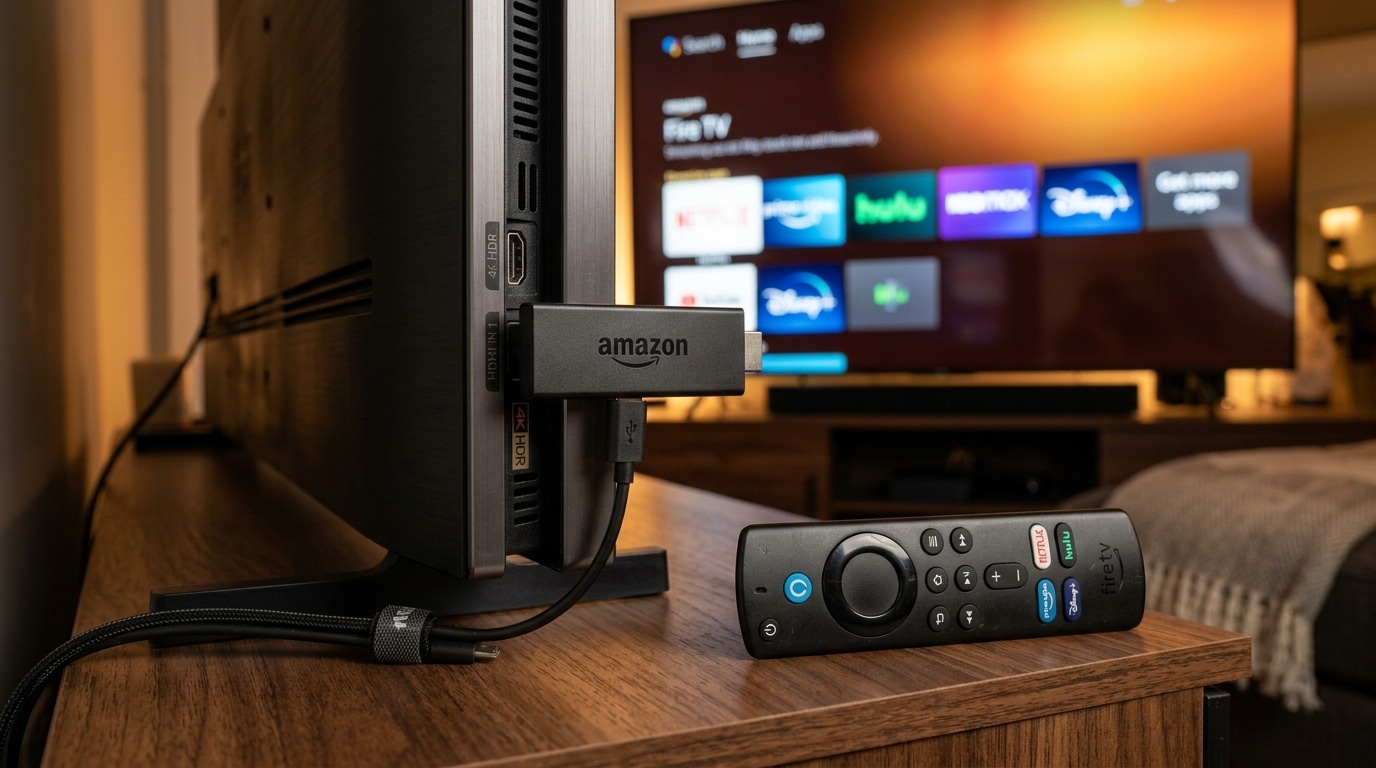
The Amazon Fire TV Stick is undisputed as the most widely used streaming device in the world for internet protocol television. It is affordable, compact, plugs directly into the back of any HDMI television, runs a modified version of Android (Fire OS), and comes equipped with an intuitive voice remote.
However, many first-time cord-cutters plug in a brand-new Firestick, open the default Amazon Appstore, search for "IPTV," and find themselves completely confused.
Because Amazon operates a proprietary app marketplace with commercial licensing restrictions, many of the world's finest, most advanced IPTV player applications—such as the acclaimed TiviMate IPTV Player—are not available through Amazon's default search directory.
To unlock the true power of your Fire TV hardware, you must understand how to prepare Fire OS, enable developer permissions, utilize the Downloader utility, and configure your credentials through the high-performance Xtream Codes API.
Furthermore, because Firesticks are compact, budget-friendly streaming sticks with limited internal RAM (typically 1.5GB to 2.0GB) and modest flash storage, an unoptimized Firestick will quickly experience sluggish remote navigation, app crashes, and periodic video buffering when tasked with loading massive television playlists.
When properly configured and paired with an enterprise broadcast provider like Reflexsat IPTV, an Amazon Firestick 4K or 4K Max transforms into a lightning-fast, cable-grade digital receiver delivering over 50,000 live HD and 4K channels, dedicated 60 FPS sports, and 200,000+ movies and series with sub-second channel zapping.
This comprehensive master walkthrough guides you step-by-step through the entire setup process: comparing Fire TV models, unhiding secret developer options, sideloading top-rated players, fine-tuning playback settings, and troubleshooting common errors.
Experience Reflexsat IPTV
Upgrade your streaming with satellite-grade, anti-freeze 10.0 infrastructure. Over 50,000 live channels, 4K 60FPS sports, and 200,000+ VODs.
Quick Summary: The 5-Minute Firestick Setup Blueprint
If you are eager to get streaming immediately, here is the essential sequence of steps:
- Unhide Developer Options: Go to Settings > My Fire TV > About, highlight your Fire TV name, and press the Center Select button 7 times until you unlock Developer Options.
- Enable Unknown Apps: In Settings > My Fire TV > Developer Options > Install Unknown Apps, toggle Downloader to ON.
- Install Downloader: Download the free Downloader app from the Amazon Appstore.
- Sideload TiviMate: In Downloader, enter the direct code for TiviMate (e.g.,
272483or official URL) to download and install the application. - Connect with Xtream Codes API: Launch TiviMate, select Xtream Codes API, and input your Server URL, Username, and Password from Reflexsat IPTV.
- Optimize Playback: Set Video Decoder to Hardware and Buffer Size to Small/Normal for instantaneous, butter-smooth channel switching.
Fire TV Hardware Comparison: Which Firestick Model is Best for IPTV?
Amazon sells several different variations of the Fire TV Stick. While all models can technically run basic IPTV applications, the internal hardware specifications vary significantly, directly impacting channel zapping speed and 4K stability.
+-----------------------------------------------------------------------------------+
|                        AMAZON FIRE TV HARDWARE MATRIX (2026)                      |
+-----------------------------------------------------------------------------------+
| Model                  | Processor       | RAM   | Storage | Wi-Fi Standard | 4K 60FPS?   |
+------------------------+-----------------+-------+---------+----------------+-------------+
| Fire TV Stick Lite     | Quad-Core 1.7G  | 1.0GB | 8 GB    | Wi-Fi 5 (ac)   | NO (1080p)  |
| Fire TV Stick HD       | Quad-Core 1.7G  | 1.0GB | 8 GB    | Wi-Fi 5 (ac)   | NO (1080p)  |
| Fire TV Stick 4K (Gen2)| Quad-Core 1.7G  | 2.0GB | 8 GB    | Wi-Fi 6 (ax)   | YES (4K 60) |
| Fire TV Stick 4K Max   | Quad-Core 2.0G  | 2.0GB | 16 GB   | Wi-Fi 6E (ax)  | YES (4K 60) |
| Fire TV Cube (3rd Gen) | Octa-Core 2.2G  | 2.0GB | 16 GB   | Wi-Fi 6E + LAN | YES (Flagship)|
+-----------------------------------------------------------------------------------+
Why You Should Avoid the Fire TV Stick Lite / HD for Heavy IPTV
The entry-level Fire TV Stick Lite and standard HD models are equipped with only 1.0 GB of RAM.
When an IPTV application attempts to index an electronic program guide containing tens of thousands of channels and multi-day timelines, the 1GB memory pool is completely exhausted. This causes the Fire OS operating system to freeze, drop video frames, and crash back to the Amazon home screen.
The Sweet Spot: Amazon Fire TV Stick 4K Max (2nd Gen)
For most cord-cutters, the Fire TV Stick 4K Max represents the premier balance of price and performance:
- Its 2.0 GHz quad-core processor and 2.0 GB of RAM provide smooth EPG navigation and instant channel zapping.
- 16 GB of internal flash storage gives you ample space to install multiple players, cache program guides, and store local recordings.
- Wi-Fi 6E support unlocks the clean 6.0 GHz wireless frequency band, eliminating wireless interference from neighboring routers.
Phase 1: Preparing Your Firestick for IPTV (The 7-Clicks Secret)
By default, Amazon disables the ability to install external applications as a security precaution. Furthermore, on recent updates of Fire OS 7 and Fire OS 8, Amazon actively hides the "Developer Options" menu by default.
Follow these exact steps to unlock your device:
+-----------------------------------------------------------------------------------+
|                     HOW TO UNHIDE DEVELOPER OPTIONS ON FIRE OS                    |
+-----------------------------------------------------------------------------------+
|  [ Settings ] ---> [ My Fire TV ] ---> [ About ] ---> [ Device Name ]             |
|                                                              |                    |
|                         CLICK THE CENTER BUTTON 7 TIMES RAPIDLY                   |
|                                                              v                    |
|                        "No need, you are already a developer!"                    |
+-----------------------------------------------------------------------------------+
Step 1: Reveal the Hidden Developer Options Menu
- From your Firestick home screen, navigate to the Settings (Gear icon) on the far right of the navigation bar.
- Scroll down and click My Fire TV.
- Click About.
- Highlight the very first entry, which displays your device name (e.g., Fire TV Stick 4K Max).
- Press the Center Select button on your remote control 7 times rapidly.
- At the bottom of your screen, a toast notification will appear reading: "No need, you are already a developer."
- Press the Back button once. You will now see the Developer Options menu visible directly beneath "About"!
Step 2: Install the Downloader Application
- Press the Home button on your remote to return to the home screen.
- Click the Find / Search icon and type
Downloader. - In the search results, select the orange Downloader application icon (developed by AFTVnews.com).
- Click Get or Download to install the free utility.
Step 3: Grant Unknown Sources Permissions to Downloader
- Return to Settings > My Fire TV > Developer Options.
- Click Install Unknown Apps (or "Apps from Unknown Sources" on older Fire OS versions).
- Scroll through the app list until you locate Downloader.
- Press the center button to toggle the permission from OFF to ON.
- Your Firestick is now fully authorized to install external media players.
Phase 2: Sideloading the Top IPTV Players with Downloader
Now that Downloader is authorized, you can install your preferred IPTV player using verified direct numeric download codes.
When you enter a numeric code into Downloader, the AFTVnews URL redirection engine automatically connects to the official developer server and downloads the clean, uncorrupted APK installation file.
+-----------------------------------------------------------------------------------+
|                     VERIFIED DOWNLOADER SHORTCUT CODES (2026)                     |
+-----------------------------------------------------------------------------------+
| Application Name           | Verified Downloader Code | Recommended Use Case      |
+----------------------------+--------------------------+---------------------------+
| TiviMate IPTV Player       | 272483 (or official site)| #1 Best Overall for TV    |
| IPTV Smarters Pro          | 78522 (Official APK)     | Best Multi-Platform App   |
| XCIPTV Player              | 250931                   | Dual Exo/VLC Player Core  |
| Televizo                   | 874312                   | Ultra-Lightweight Low RAM |
+-----------------------------------------------------------------------------------+
Installing TiviMate IPTV Player (The #1 Choice for Firestick)
As detailed in our breakdown of the best IPTV players, TiviMate is widely recognized as the single finest television streaming client available for Amazon Fire TV hardware.
Step-by-Step Installation:
- Open the Downloader app.
- When prompted on first launch, click Allow to grant Downloader permission to access device photos, media, and files (this is required to save the APK).
- Click the URL text entry box on the Home tab.
- Type the verified code:
272483(or typetivimate.comto download directly from the official developer site). - Click Go. The application will redirect and begin downloading the TiviMate APK file (approximately 15 to 20 MB).
- When the download completes, a system installation popover will appear. Click Install in the lower-right corner.
- Once installed, click Done.
- Downloader will ask if you want to delete the installation file. Click Delete, and click Delete again to confirm. Deleting the APK file frees up precious storage space on your Firestick!
Alternative: Installing IPTV Smarters Pro
If you prefer the familiar dashboard interface of IPTV Smarters Pro:
- Open Downloader.
- Enter the official Smarters shortcode:
78522(or visitfiresticktricks.com/smarter). - Click Go to download the package.
- Click Install upon completion, followed by Done, and delete the temporary APK file.
Phase 3: Connecting Your Reflexsat IPTV Subscription
Once your chosen player is installed, connecting your television service takes less than two minutes using the modern Xtream Codes API database protocol.
+-----------------------------------------------------------------------------------+
|                        XTREAM CODES API CONNECTION WORKFLOW                       |
+-----------------------------------------------------------------------------------+
|  [ Launch Player ] ---> [ Add Playlist ] ---> [ Select Xtream Codes API ]         |
|                                                              |                    |
|                         ENTER FOUR CREDENTIAL FIELDS:                             |
|                         1. Any Name: "Reflexsat IPTV"                             |
|                         2. Server URL: http://stream-domain.com:8080               |
|                         3. Username: (Your unique account ID)                     |
|                         4. Password: (Your secure key)                            |
|                                                              v                    |
|  [ Click Next ] ------> [ Automatic Database & 7-Day EPG Synchronization ]        |
+-----------------------------------------------------------------------------------+
Step-by-Step Configuration in TiviMate:
- Launch TiviMate from your Firestick Apps library (hold down the Home button on your remote, select Apps, scroll to TiviMate, and press the Menu button to move it to the front of your home screen).
- Click Add Playlist.
- Select Xtream Codes API.
- You will be prompted to fill in four fields:
- Server Address: Type the exact server portal address provided in your Reflexsat IPTV subscription confirmation (e.g.,
http://stream-cluster.reflexsat.com:8080). Make sure there are no typos or accidental spaces at the end. - Username: Enter your unique alphanumeric username.
- Password: Enter your account password.
- Include VOD: Ensure the toggle for Video on Demand is turned ON so your player downloads movie and TV series libraries.
- Server Address: Type the exact server portal address provided in your Reflexsat IPTV subscription confirmation (e.g.,
- Click Next. TiviMate will connect to the server, query the channel database, and download channel categories and program schedules.
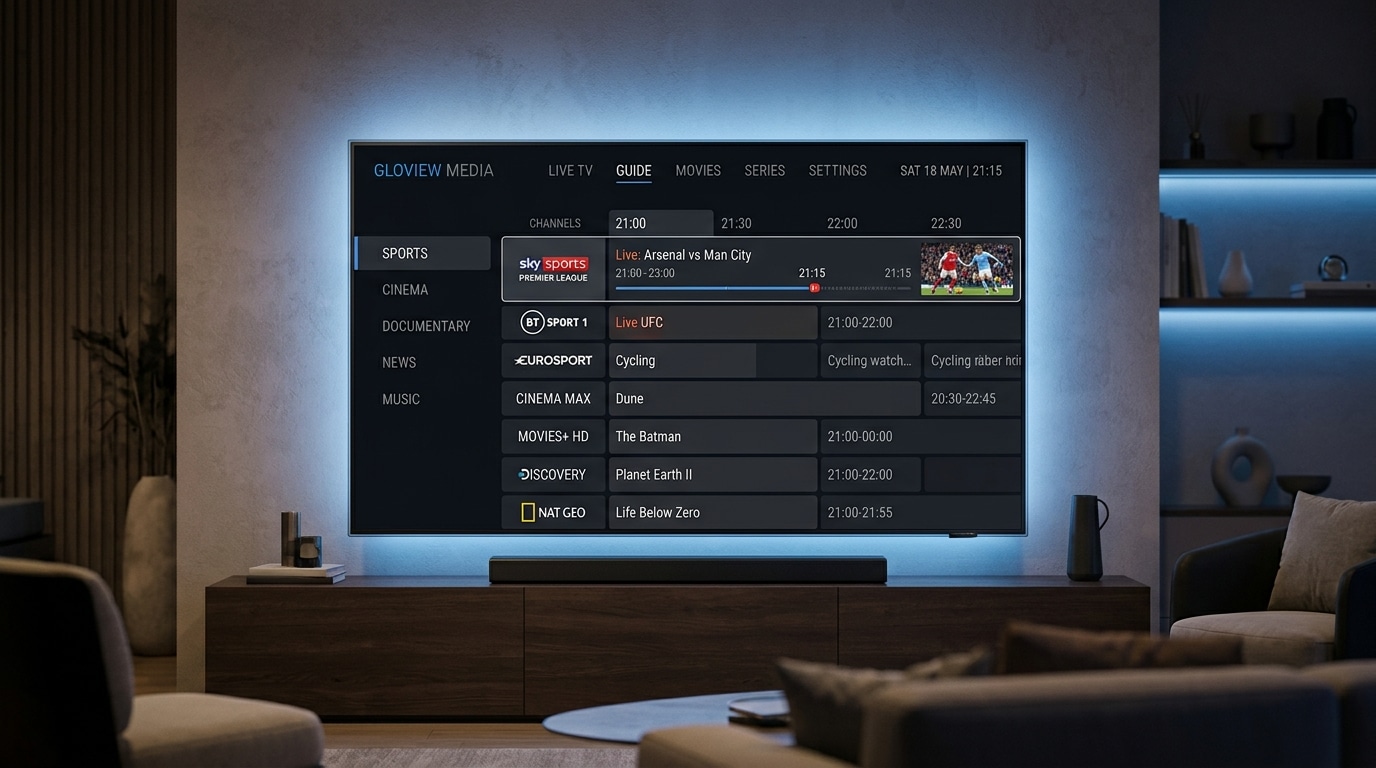
- Click Done. Your television will now display the full broadcast guide with live previews!
Explore our full channel catalog to see the extensive sports, cinema, and international bouquets available.
Phase 4: Fire OS System Tuning & Optimization for IPTV
To prevent your Amazon Firestick from overheating, slowing down, or dropping frames during live 60 FPS sports broadcasts, implement these critical system-level tweaks:
1. Disable Amazon Background Telemetry & Data Monitoring
Amazon Fire OS continuously collects background analytics, telemetry data, and app-usage metrics. This background activity consumes CPU cycles and Wi-Fi bandwidth while you are trying to stream television.
How to Disable Telemetry:
- Go to Settings > Preferences > Privacy Settings.
- Turn Device Usage Data to OFF.
- Turn Collect App Usage Data to OFF.
- Return to Preferences > Data Monitoring and turn Data Monitoring to OFF.
2. Turn Off Video and Audio Autoplay on the Home Screen
When you leave your Firestick idle on the home screen, Amazon automatically plays loud promotional movie trailers and advertisements in the background, consuming RAM and network data.
How to Disable Autoplay:
- Go to Settings > Preferences > Featured Content.
- Turn Allow Video Autoplay to OFF.
- Turn Allow Audio Autoplay to OFF.
3. Match Original Frame Rate (AFR) Calibration
Television networks broadcast at different frame rates: European football feeds run at 50 Hz, while American live sports run at 60 Hz.
If your Firestick outputs a static 60Hz signal to a 50Hz broadcast, motion judder occurs.
How to Enable System Frame Rate Matching:
- Go to Settings > Display & Sounds > Display.
- Scroll to Match Original Frame Rate and toggle it to ON.
- In TiviMate, go to Settings > Playback > Auto Frame Rate (AFR) and toggle it to ON.
- When you tune into a sports match, your Firestick dynamically synchronizes its refresh rate with the incoming broadcast signal.
4. Optimize Player Buffer Size
Never set your playback buffer to "Large" unless you are on a severely unstable rural cellular hotspot. A large buffer forces you to wait several seconds on every channel change.
- In TiviMate, go to Settings > Playback > Buffer Size.
- Set it to Small or Normal (approximately 1.0 to 2.5 seconds).
- This provides sufficient cushion to absorb minor network jitter while keeping channel zapping response under two seconds.
Review our dedicated guide on fixing slow IPTV channel switching to master sub-second zapping.
Power User Hardware Upgrades: Expanding Storage and Hardwiring Ethernet
If you want to turn your humble Fire TV Stick into an enterprise-grade streaming setup, two inexpensive hardware accessories provide immense stability upgrades:
+-----------------------------------------------------------------------------------+
|                        FIRESTICK POWER USER HARDWARE EXPANSION                    |
+-----------------------------------------------------------------------------------+
|  [ Amazon Firestick ]                                                             |
|           |                                                                       |
|  [ Micro-USB OTG "Y" Cable ]                                                      |
|      /                                                                           |
|  [ Power Cord ]    [ USB Hub with Gigabit Ethernet Adapter + USB 3.0 Flash Drive ]|
|                          |                                   |                    |
|                    (Wired Cat6 Network)            (Local DVR Recording Storage)  |
+-----------------------------------------------------------------------------------+
1. Adding a USB 3.0 Flash Drive via Micro-USB OTG Cable
Because the standard Firestick 4K only has 8GB of internal storage (with less than 5GB actually accessible to users), recording live television or storing large EPG guides can quickly exhaust disk space.
By purchasing an inexpensive Micro-USB OTG "Y" Cable (available for under $8 online):
- You plug the male micro-USB connector into your Firestick.
- You plug your Amazon power brick into the female power port.
- You plug a standard USB 3.0 Flash Drive (32GB, 64GB, or 128GB formatted to FAT32) into the USB port.
- Fire OS will recognize the drive as external storage!
- In TiviMate, you can now designate this USB drive as your default Recording Directory, allowing you to record hours of live sports and movies directly to thumb-drive storage.
2. Hardwiring with an Ethernet Adapter
Wi-Fi signals are inherently subject to interference from walls, microwaves, and neighboring routers. Connecting your Firestick with a physical Cat6 Ethernet cable eliminates wireless jitter completely.
Purchase an official Amazon Ethernet Adapter for Fire TV (or a third-party micro-USB Gigabit adapter). Connect one end to your Firestick, plug your Ethernet cable from your router into the adapter, and enjoy 0.0% packet loss and sub-millisecond network latency.
Learn more about network optimization in our IPTV internet speed and bandwidth guide.
Critical Power & Thermal Management: Preventing Brownouts and Overheating
Two of the most frequently misdiagnosed issues on Amazon Firesticks are random reboots and thermal throttling during high-bitrate video streaming.
1. The Television USB Port Mistake (Preventing Brownout Reboots)
A common mistake among consumers is plugging the Firestick's micro-USB power cord into the service USB port on the back of their television set rather than into the wall outlet with the official Amazon power brick.
Most television USB ports are standard USB 2.0 ports rated at only 0.5 Amps (500mA) at 5 Volts (2.5 Watts).
While 0.5A is sufficient to power the Firestick through basic menu navigation, the moment you launch a high-bitrate 4K 60 FPS sports broadcast or decode an uncompressed H.265 stream, the Firestick’s quad-core CPU and GPU spike to maximum clock speeds, demanding 1.5 to 2.0 Amps (10 Watts).
When the television's USB port fails to supply sufficient electrical current, the Firestick experiences a momentary voltage drop called a brownout. The screen goes black, and the Amazon logo appears as the stick reboots itself.
The Golden Rule: Always connect your Firestick using the official Amazon 5.25V 1.8A AC power adapter plugged directly into an electrical wall outlet or surge protector.
2. Preventing Thermal Throttling with the HDMI Extender
Every Amazon Fire TV Stick includes a short, flexible 4-inch HDMI extender cable in the box. Many users discard this accessory, plugging the Firestick directly into an HDMI port on the back of the TV.
Plugging the Firestick directly into the television chassis creates severe thermal and wireless hazards:
- The streaming stick is trapped against the hot metal backplate of the television, soaking up heat generated by the TV’s power inverter and backlights.
- When the Firestick's internal temperature exceeds 75°C, the processor automatically cuts its clock speed in half to prevent silicon damage. This thermal throttling causes severe video stutter and dropped frames.
- The TV panel's metal chassis acts as a radio frequency shield, blocking Wi-Fi signals from reaching the Firestick's internal antenna.
The Solution: Always install the included flexible HDMI extender cable. It creates physical distance between the hot television backplate and the streaming stick, promoting passive air convection cooling and significantly improving Wi-Fi signal reception.
Ten Essential Fire OS Settings for Flawless IPTV Performance
Beyond basic setup, these ten system configuration tweaks ensure your Firestick operates at maximum efficiency:
+-----------------------------------------------------------------------------------+
|                     10 CRITICAL FIRE OS PERFORMANCE TWEAKS                        |
+-----------------------------------------------------------------------------------+
| 1. Video Resolution        | Set to "Auto (up to 4K)" or lock to native 1080p/4K  |
| 2. Color Depth             | Set to "10-bit" or "12-bit" for true HDR sports      |
| 3. Color Format            | Set to "YCbCr" for broadcast color accuracy          |
| 4. Match Frame Rate        | Toggle "ON" to eliminate 50Hz / 60Hz motion judder   |
| 5. Surround Sound          | Select "Best Available" for Dolby Digital passthrough|
| 6. App Notifications       | Turn OFF notifications to prevent stream interruptions|
| 7. Automatic App Updates   | Turn OFF so updates do not trigger during live games |
| 8. Sleep Timer             | Adjust sleep timer to prevent mid-game shutoffs      |
| 9. HDMI-CEC Device Control | Enable to control TV power and volume with one remote|
| 10. Data Monitoring        | Disable completely to reduce background network load |
+-----------------------------------------------------------------------------------+
1. Calibrate Display Color Depth and Format
- Open Settings > Display & Sounds > Display.
- Color Depth: If you own a modern 4K HDR or OLED TV, set Color Depth to Up to 10 bits or Up to 12 bits. This prevents color banding on sky and arena gradient backgrounds.
- Color Format: Change from RGB to YCbCr. Broadcast television cameras capture footage natively in YCbCr color space; setting this prevents the Firestick from performing unnecessary color conversions.
2. Disable Application Notifications
Nothing is more annoying during a live sports match than an intrusive pop-up notification from a game or shopping app obscuring the score.
- Go to Settings > Preferences > Notification Settings.
- Turn Do Not Disturb to ON, or click App Notifications and disable notifications for every application except critical system alerts.
3. Turn Off Automatic App Updates
- Go to Settings > Applications > Appstore.
- Turn Automatic Updates to OFF.
- This ensures Amazon never initiates a heavy background download and installation while you are actively streaming live sports.
Alternative Sideloading Walkthrough: Setting Up XCIPTV and Televizo
While TiviMate is our top recommendation, having a secondary player installed on your Firestick provides an invaluable backup if you ever need to troubleshoot a specific stream format.
Installing XCIPTV Player via Downloader:
- Open the Downloader application.
- In the URL bar, enter the verified code
250931(or type the official OTTRUN URL). - Click Go to download the APK.
- Click Install, and once finished, click Done and delete the installer file.
- Open XCIPTV and log in using your Reflexsat IPTV credentials.
- Under Settings > Player, you can toggle between ExoPlayer and VLC Player, giving you a robust alternative engine for stubborn video streams.
Installing Televizo for Maximum Memory Efficiency:
- Open Downloader.
- Type code
874312. - Download and install the Televizo APK.
- Televizo’s ultra-lean memory footprint (consuming under 50MB of RAM) makes it the ideal emergency backup app if your Firestick is running low on memory.
Customizing the Fire TV Voice Remote for Live Television Navigation
The Amazon Alexa Voice Remote can be customized to make browsing your IPTV channels feel just like a traditional cable box:
1. The Channel Guide Shortcut (TiviMate Remote Mapping)
In TiviMate, you can re-map what each remote button does during live playback:
- Go to Settings > Remote Control > Player.
- Set Up Arrow: Channel List / Guide.
- Set Down Arrow: Player Controls Banner.
- Set Left Arrow: Show Categories / Bouquets.
- Set Right Arrow: Show Electronic Program Guide.
- Set Long-Press Center Button: Open Multi-Screen View.
2. Channel Number Input Without a Number Pad
Because the Fire TV remote does not have physical 0–9 number keys, navigating directly to channel #450 can seem difficult:
- In TiviMate, press the Select / Center button to bring up the channel guide.
- Click the Search icon (Magnifying Glass).
- Speak your desired network name into the remote microphone (e.g., "ESPN 4K" or "Sky Sports Main Event").
- TiviMate filters the channel list instantaneously!
Troubleshooting Common Firestick IPTV Errors
If you encounter technical issues during setup or streaming, use these proven diagnostic fixes:
1. "App Not Installed" Error During Sideloading
- Cause: The downloaded APK file is corrupted, or your Firestick is running out of internal flash storage.
- Fix: Go to Settings > Applications > Manage Installed Applications. Uninstall unused apps to free up at least 500MB of free space. Re-open Downloader and re-download the APK file using a verified shortcode.
2. Audio Plays Clearly, but the Screen is Pitch Black
- Cause: Video decoder mismatch. The Firestick's hardware decoder cannot render the incoming video codec (often an HEVC profile).
- Fix: Open player settings and switch the Video Decoder from "Hardware" to "Software" or "VLC Engine". Consult our complete walkthrough on fixing IPTV black screens with sound.
3. Stream Loops or Jumps Backward 10 Seconds
- Cause: Upstream server packet buffer overflow or ISP peering congestion.
- Fix: In player settings, slightly increase the Buffer Size from Small to Normal (2-3 seconds). If the issue is isolated to a single sports channel, switch to the alternative Away feed or backup bouquet.
4. Firestick Remote Feels Sluggish or Unresponsive
- Cause: Low device memory caused by dozens of background apps lingering in RAM.
- Fix: Go to Settings > Applications > Manage Installed Applications. Select your apps and click Force Stop and Clear Cache (never click Clear Data). Alternatively, hold down the Select and Play/Pause buttons simultaneously on your remote for 5 seconds to perform a hard reboot.
Frequently Asked Questions
Final Recommendation: Master Your Fire TV Streaming Experience
The Amazon Fire TV Stick is an extraordinary piece of streaming technology when unlocked to its full potential. By moving past the limitations of the default Appstore and configuring professional broadcast software:
- You unlock true cable-grade navigation with TiviMate's full Electronic Program Guide.
- You eliminate motion blur and judder by matching original 50Hz and 60Hz broadcast frame rates.
- You enjoy uninterrupted viewing by disabling background Amazon telemetry and managing device RAM.
- You gain access to a world of entertainment with over 50,000 live international channels, VIP sports, and 200,000+ movies and series.
At Reflexsat IPTV, our broadcast infrastructure is optimized specifically for Amazon Fire TV hardware. Backed by Anti-Freeze 10.0 technology, dedicated high-speed server clusters, and 24/7 VIP human assistance on WhatsApp, we deliver the smoothest, most dependable streaming experience in the industry.
Choose your subscription package today on our pricing page, check our comprehensive installation guides, or contact our support team directly on our live support desk to request your free 24-hour test line and start streaming on your Firestick today!